
Table of Contents
How often should you back up your WordPress site? It’s one of the most common questions I get asked. Look, I get it – backing up isn’t exactly the most exciting part of running a website. But here’s the thing, I’ve seen too many site owners learn this lesson the hard way (including me).
One minute everything’s running smoothly, the next minute a plugin update goes wrong, and suddenly weeks of work vanish into thin air. The worst part? It’s completely preventable.
So let’s talk about how often you should actually back up your WordPress site. No tech jargon, no overcomplicated nonsense, just practical advice that’ll keep your website safe.
Why WordPress Backup Frequency Actually Matters
Your WordPress database contains everything you’ve worked hard to create, every blog post, every comment, every product listing, and every customer order. If that database gets corrupted or erased, you’re looking at losing everything you’ve built.
Most website disasters aren’t dramatic server meltdowns. They’re small mishaps that snowball:
- A plugin update that breaks your checkout process
- Accidentally deleting an important page
- A theme update that ruins your carefully designed layout
- Malware that goes undetected for weeks
The gap between your last backup and when disaster strikes? That’s your potential loss. If you back up weekly but publish content daily, you could lose an entire week’s worth of effort in minutes.
Key Factors That Determine Your Backup Schedule
There’s no magic formula that works for every WordPress site. Your backup frequency should match how your site actually operates. Here’s what to consider:
How Often Does Your Content Change?
Some sites publish multiple blog posts daily. Others update their “About” page twice a year. E-commerce stores might add new products weekly whilst updating inventory hourly.
Take an honest look at your content calendar. If you’re creating and publishing content regularly – blogs, articles, photos, videos, infographics, podcasts, you need backups that match that rhythm.
General rule: If you only update once a week, weekly backups work fine. But if you’re adding new content daily (especially multiple items), you should back up daily or more frequently.
Just think about how gutting it would be to rewrite and repost dozens of articles because you didn’t back up your site properly.
What Kinds of Transactions Happen on Your Site?
E-commerce sites with high transaction volumes need frequent backups. Losing even a few hours of order data can cost thousands in revenue and create customer service nightmares you don’t want to deal with.
But it’s not just about orders. Think about all the other activities happening on your site: user registrations, password changes, profile updates (addresses, payment methods), product reviews, and wishlist additions. When customers update their account details or leave reviews, that data needs protecting too. Imagine the confusion when a customer can’t log in because their password change was lost, or when product reviews vanish overnight.
Membership sites face similar challenges. New registrations, user activities, and forum posts all accumulate quickly on active platforms.
Even simple contact forms matter. If your site generates several leads per day, losing those submissions because of a backup gap hurts your business.
Do You Have User-Generated Content?
Comments, reviews, and forum discussions change rapidly, often without your direct involvement. Active community sites can generate hundreds of new posts and interactions daily.
Whenever a visitor interacts with your site in any way, leaving comments, submitting forms, making purchases, those interactions are recorded in your WordPress database. For high-activity sites, this data adds up fast.
How Much Do You Modify Your Site?
Some site owners install new plugins monthly. Others modify theme files, add custom code, or experiment with different configurations weekly.
The more you tinker with your site, the higher your risk of something breaking. And here’s a critical point: you should always run a backup immediately before and after any update, whether that’s WordPress core, themes, plugins, or developmental changes.
Many hosting companies and plugins like Jetpack enable automated updates. Even though you’re not running these yourself, it’s important to be aware of the update schedule so you can create backups to go along with them. One thing I like to do when automating backups is to also automate a home page check, ensuring the site is still online and looks the same after the update.
What’s Your Actual Tolerance for Data Loss?
This might be the most important question. Could you handle losing a day’s worth of data? An hour’s worth? Or does the thought of losing anything make you break out in a cold sweat?
Here’s my take: if your website actively generates revenue or leads, your tolerance for data loss should approach zero. The anxiety alone isn’t worth the savings from less frequent backups.
How Often Should You Back Up Your WordPress Site? Common Backup Frequencies
Let’s break down practical backup schedules and who they work best for.
Monthly Backups (Only for Special Cases)
So how often should you back up your WordPress site? Monthly backup frequency only works for archived sites that rarely change or receive visitors. For any active website, monthly backups create dangerous gaps. Too much can happen in 30 days, security breaches, server issues, accidental changes and even several plugin or core updates.
Bottom line: This should be the exception, not standard practice. I would not recommend this.
Weekly Backups
How often should you back up your WordPress site if it’s fairly static? If you make significant changes only occasionally, daily backups might be overkill. Weekly backups work for simpler, brochure-style websites or personal blogs that update infrequently.
But here’s a word of caution: even static sites face security threats and server problems. Don’t let infrequent updates make you complacent about protection.
At a minimum, you should back up your WordPress site at least once a week, and save the backup off-site and locally on your computer.
Daily Backups (The Sweet Spot for Most Sites)
Daily backups work well for most active blogs, smaller e-commerce sites, and any site with regular user interaction. You’ll save the majority of new content and changes without being excessive. For most site owners asking ‘how often should you back up your WordPress site?’, daily is the answer.
I generally recommend daily backups as a solid starting point for most sites. It’s the ideal backup frequency for standard business websites.
If you publish content regularly, receive comments, or process transactions, daily backups provide good protection without overwhelming your server resources.
Multiple Times Per Day (Hourly or Real-Time)
For high-volume e-commerce stores, how often should you back up your WordPress site? Multiple times per day. Sites processing dozens of orders daily need this level of protection. Active membership platforms and busy forums generate critical data constantly.
For high-activity sites, the best approach is to run a real-time backup service that creates new restore points every time a change is detected.
The cost of losing several hours of transaction data typically exceeds the resources needed for frequent backups. When every lost order represents real money and customer frustration, hourly backups become a business necessity.
If you’re struggling with backup schedules and WordPress maintenance? These are the exact topics that we discuss over in the WP Odyssey community, where you can learn from experienced site owners who’ve fine-tuned their backup strategies. Get answers to your questions without the overwhelm.
Understanding the Two Parts of WordPress Backups
Before we discuss how often should you back up your WordPress site, understand that a complete WordPress backup includes two essential components:
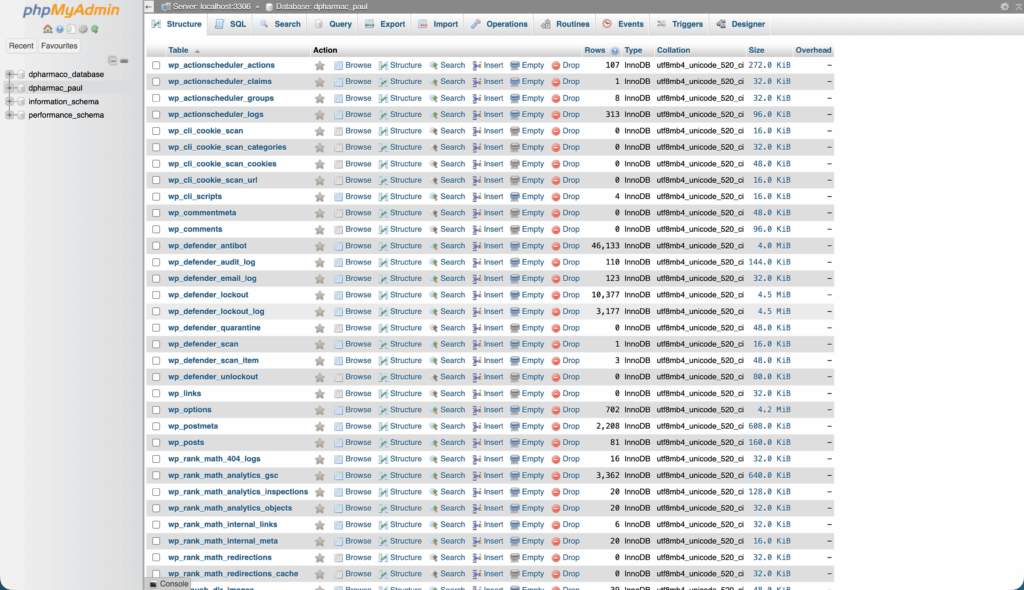
Your WordPress Database
This contains every post, every comment, every link, and all the data generated on your site. Your database is the heart of your WordPress installation.
Your WordPress Files
This includes:
- WordPress core installation
- WordPress plugins
- WordPress themes
- Images and uploaded files
- JavaScript, PHP, and other code files
- Additional files and static web pages
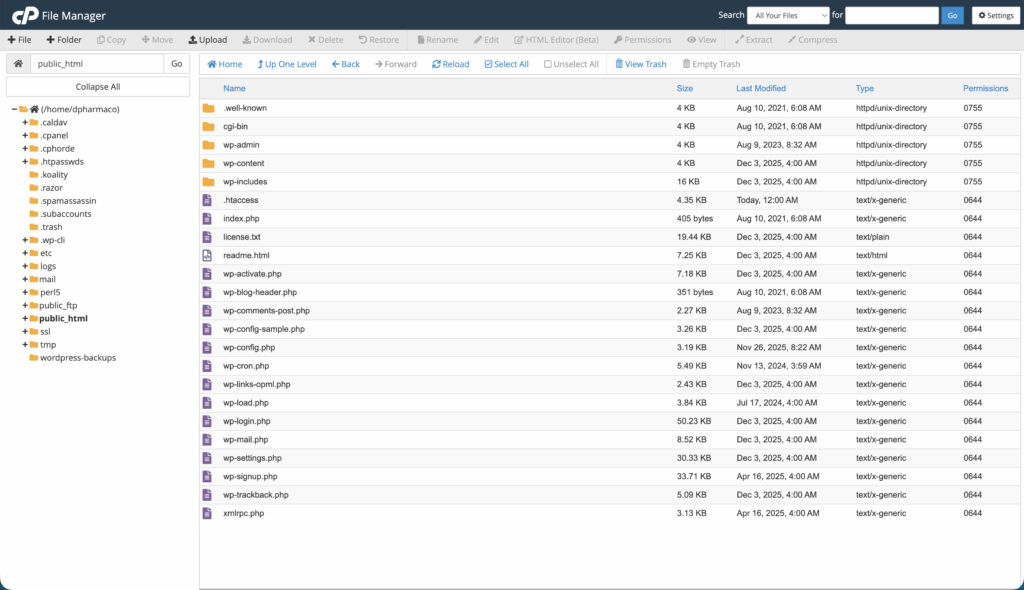
Both parts work together to create your website. The database stores your content and data, whilst the files determine how everything looks and functions.
How to Actually Back Up Your WordPress Site
You’ve got several methods for backing up your site files:
Website Host Provided Backup Software
Most website hosts provide software to back up your site. Check with your host to find out what services and programmes they provide. Many hosts back up the entire server, typically taking one weekly full backup and then daily incremental backups to ensure anything new is saved.
My recommendation? Get this set up, but treat it as your last resort backup rather than your primary solution.
Here’s why: when disaster strikes, you need immediate access to restore your site. Requesting a backup from your host can take hours or even days, involving support tickets and waiting for their team to retrieve and provide your files. When your site is down and you’re losing revenue or credibility, that’s time you can’t afford to waste.
That said, host backups do have value. They’re particularly useful for recovering server configurations, email accounts, and other server-level settings that your WordPress backup plugins won’t capture. Think of them as your safety net behind the safety net, not your primary backup strategy.
Manual Backup Methods
You can use FTP clients or sync programmes like WinSCP to copy files to your computer. Once downloaded, compress them into a zip file to save space, allowing you to keep several versions.
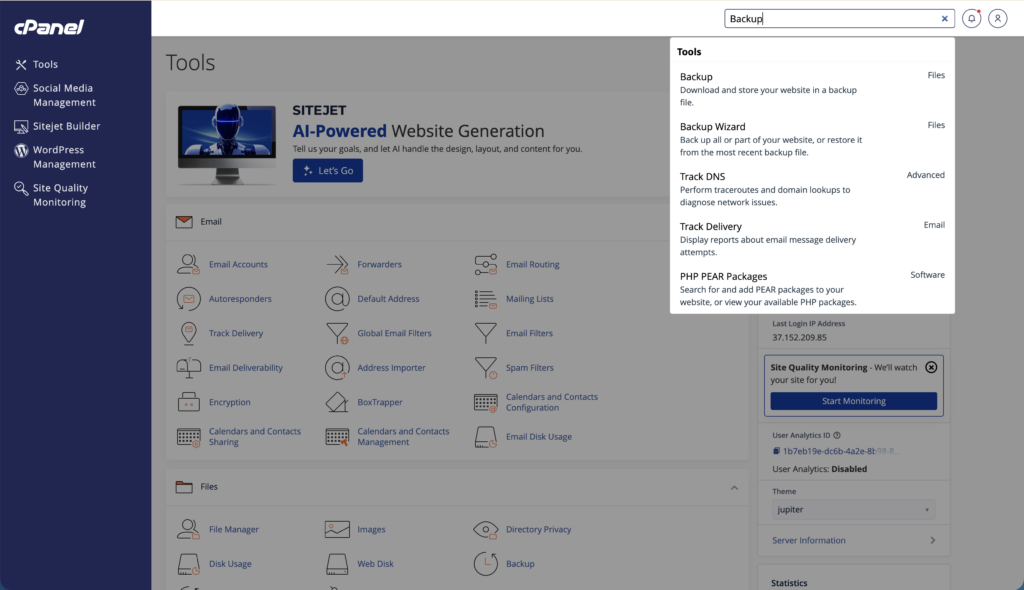
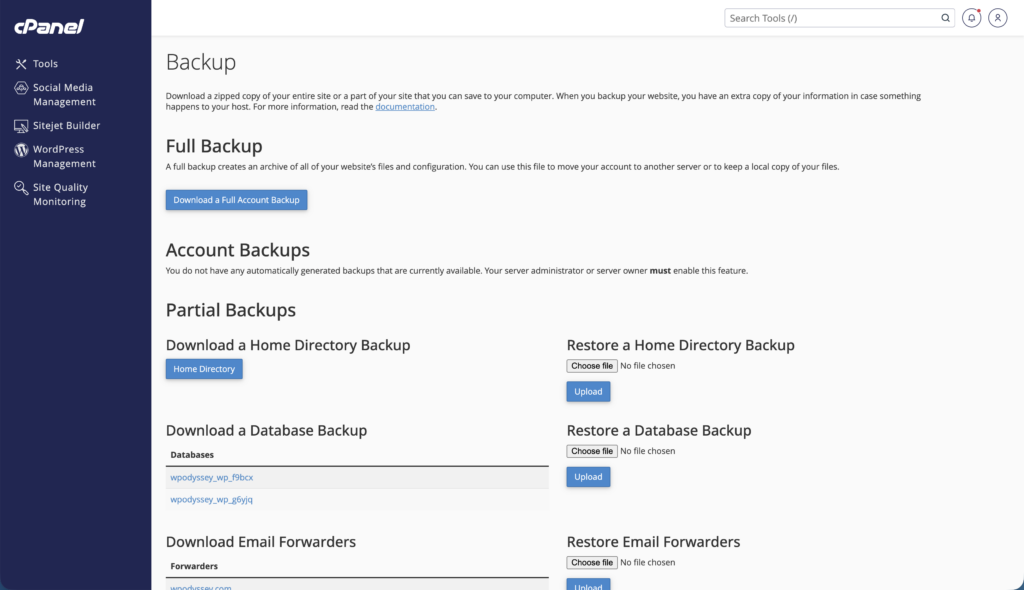
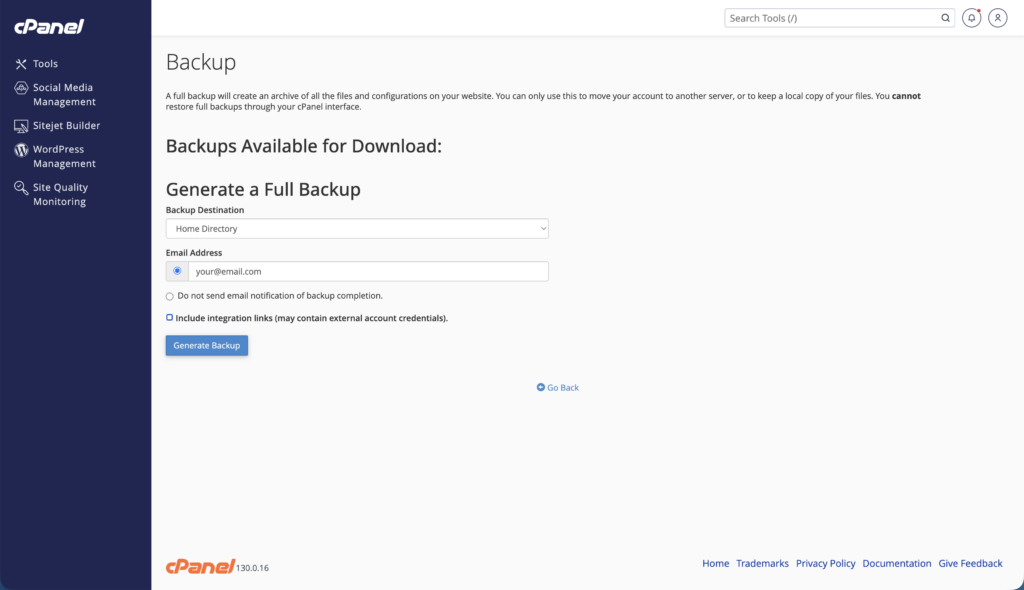
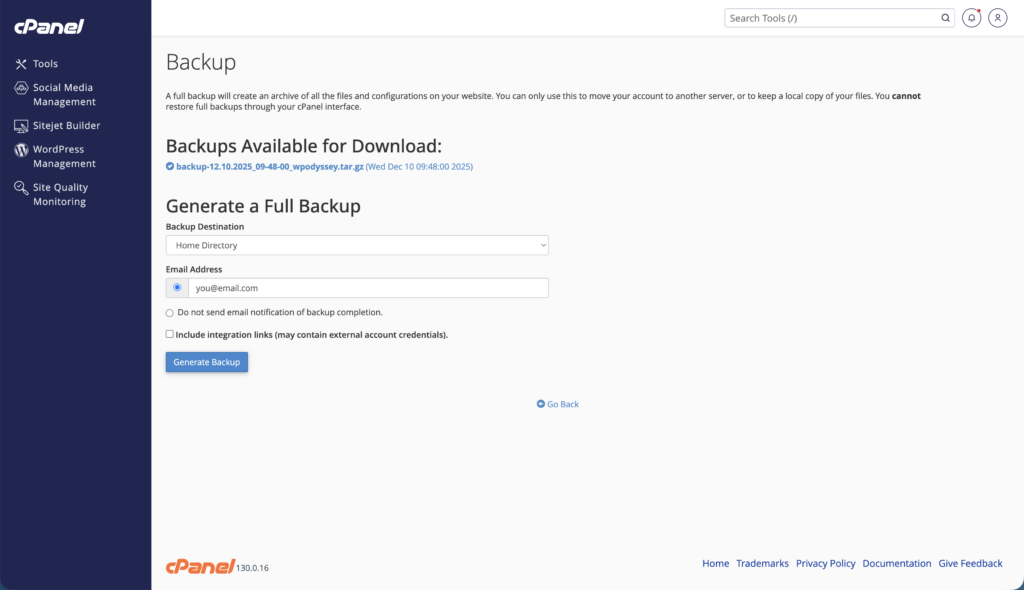
If you are using any version of cPanel you can login, search for backups and perform a full backup, download it and save it to your computer or safe storage device.
Database Backups Using cPanel
The quickest way to back up your WordPress database through cPanel is incredibly straightforward:
- Log in to your cPanel
- Search for and click on “Backups”
- Scroll down to “Download a Database Backup“
- Click on your WordPress database name to download it immediately
The file will download as a .sql or .gz file that you can save to your computer or cloud storage.
Alternative Method: Using phpMyAdmin
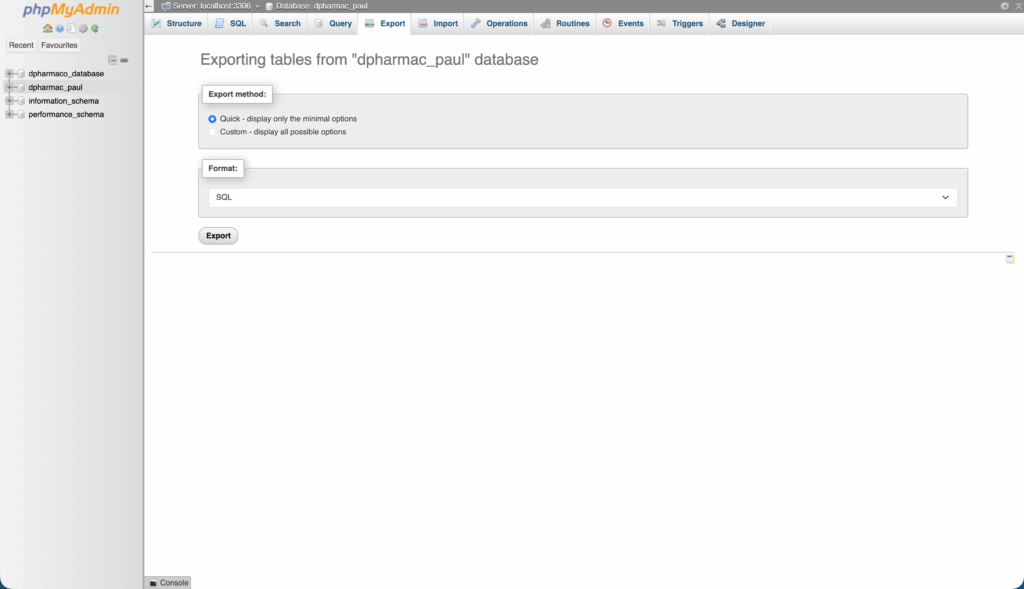
If you prefer more control over your database backup or your host doesn’t use cPanel, you can access phpMyAdmin through your hosting control panel (cPanel, Plesk, Direct Admin, etc.):
- Access phpMyAdmin from your hosting control panel
- Select your WordPress database
- Click Export
- Select all tables
- Choose SQL format
- Check “Add DROP TABLE” and “IF NOT EXISTS”
- Save the file to your computer
Automated Backup Plugins: The Smart Choice
When you need to run frequent backups, choosing a plugin that does it automatically is the safest option. Why? Because it removes human error from the equation.
Rather than remembering to run a manual backup once a day (or more), it gets done automatically without you having to think about it.
Popular WordPress Backup Plugins
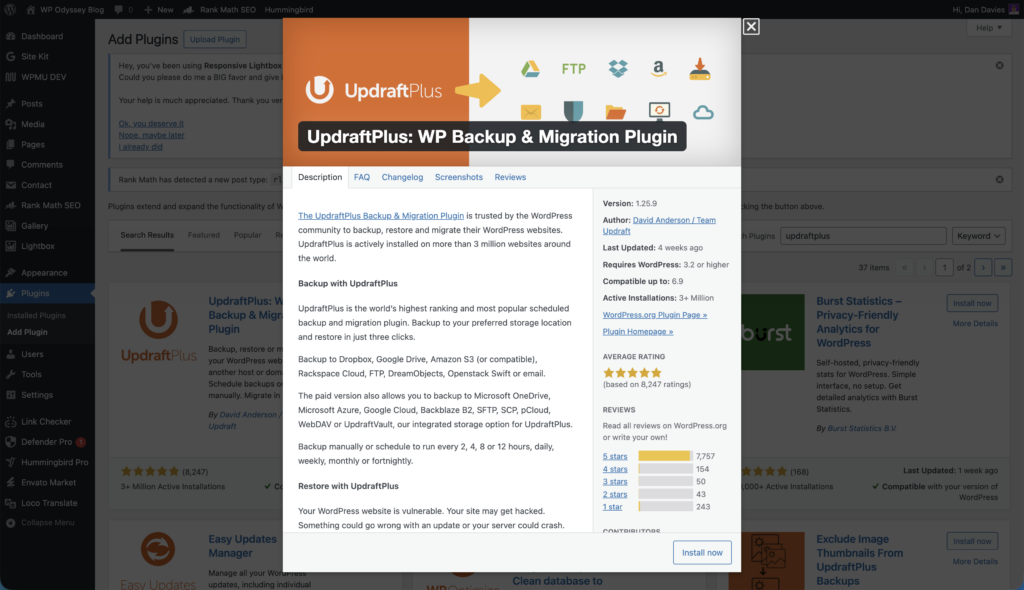
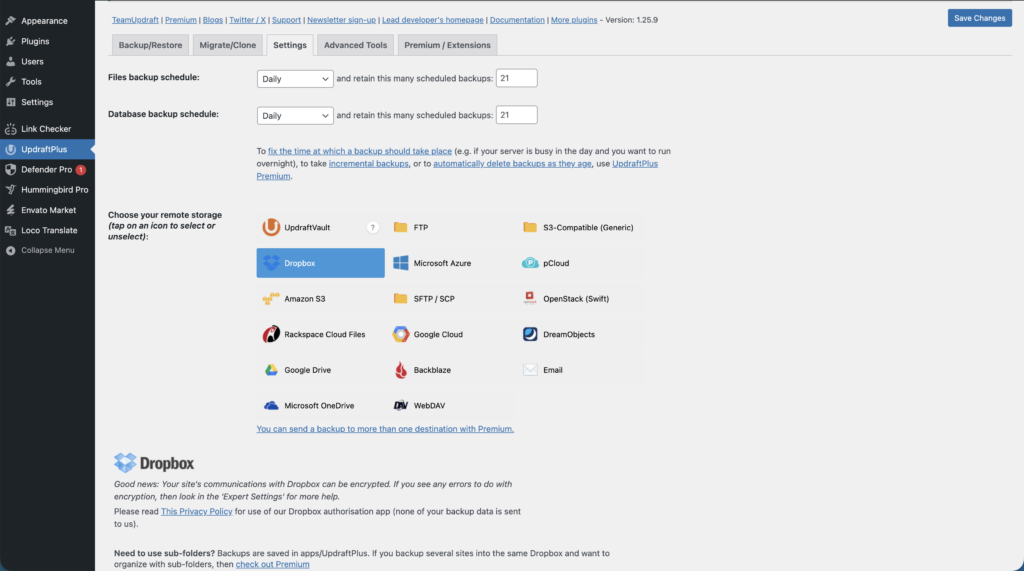
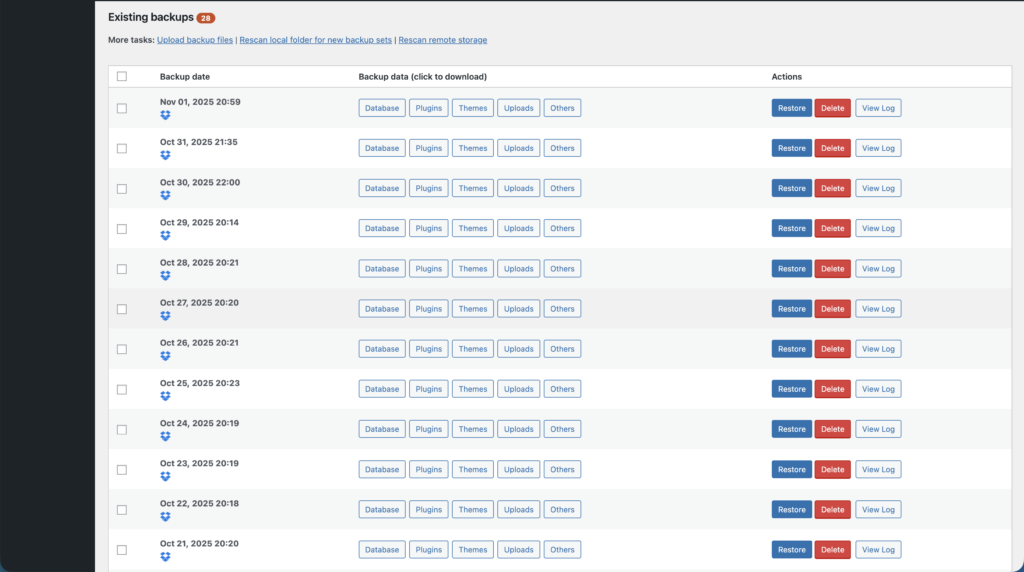
UpdraftPlus (Free/Premium): This is my go-to for client sites. The free version does a brilliant job, and I use it to automatically save backups to Dropbox. It’s straightforward, reliable, and doesn’t overcomplicate things. The interface is intuitive enough that even clients can understand what’s happening with their backups.
Duplicator Pro: Whilst I primarily love Duplicator for migrating sites (it’s honestly the best tool for that job), it’s also excellent for scheduled backups. It allows automated backups at whatever frequency makes sense for your site – daily, weekly, monthly, or hourly. It integrates easily with cloud storage services like Google Drive, Dropbox, and Amazon S3.
Snapshot Pro (WPMU Dev): Snapshot Pro is a solid enterprise-level backup solution that’s part of the WPMU Dev package. It offers comprehensive backup features with easy restoration options. Worth noting if you’re looking for an all-in-one WordPress management solution.
Other Options Worth Mentioning:
Total Upkeep offers automatic and manual backups, off-site storage, and migration tools. The Premium version can install updates whilst providing a history of every file changed on your website.
Jetpack provides daily automatic backups with a paid subscription. However, I’d recommend caution here – in my experience managing sites, Jetpack can significantly impact site performance. If you’re running a slow site with Jetpack installed, that’s often the culprit.
BackWPup Pro is known for being fast with offsite backup options, though it doesn’t include a restore feature and can be tricky to set up initially.
The 3-2-1 Backup Rule: A Starting Point (But Not Enough)
You’ll often hear about the classic 3-2-1 backup rule, which requires:
- 3 copies of your data
- On 2 different types of media
- With 1 copy off-site
Whilst this sounds good in theory, it’s not enough for WordPress sites. Here’s why: if malware has been sitting dormant on your site for a week, or an issue has gone undetected for five days, and you only have three backups, you’re in trouble. Even restoring the oldest backup might still contain the malware or issue.
A Better Approach: The 21-Day Rule
Based on managing client sites for over 15 years, this is my answer to ‘how often should you back up your WordPress site?’…
On Your Host (separate backup server, not the same server as your live site): Keep your host’s weekly full backups plus daily incremental backups as a safety net.
In Cloud Storage (Dropbox, Google Drive, etc.): Store 21 days of daily backups. This gives you enough history to go back and find a clean restore point before issues started, whilst not consuming excessive storage space.
Retention Policy for Different Backup Types:
- Keep daily backups for at least three weeks (21 days minimum)
- Keep weekly backups for a month
- Keep monthly backups for 3-6 months
This approach has never let me down. The three-week daily backup window gives you enough breathing room to catch malware, identify when problems started, and restore to a genuinely clean version of your site.
Why This Matters
Malware often goes undetected for weeks. Plugin conflicts might not surface immediately. Having only 3-5 backups means you might not have a clean restore point when you desperately need one. The small cost of additional cloud storage is nothing compared to the nightmare of discovering all your backups are infected.
Most backup plugins can automate retention policies, so once you set this up, it manages itself.
Frequently Asked Questions About WordPress Backups
The 3-2-1 backup rule is a proven strategy for protecting your data: maintain 3 copies of your data, store them on 2 different types of storage media, and keep 1 copy off-site. For WordPress sites, this means having a backup on your server, one in cloud storage, and one on your local computer. This approach protects you against various failure scenarios, from server crashes to accidental deletions.
The 3-2-1-1-0 rule extends the classic backup strategy by adding two crucial elements: one additional offline backup (disconnected from the internet to protect against ransomware) and zero errors (meaning you regularly test your backups to ensure they actually work). This enhanced approach provides even stronger protection for critical WordPress sites that can’t afford any data loss.
The 3-2-2 backup rule is a variation that emphasises having 3 copies of your data, on 2 different storage types, with 2 of those copies stored off-site. This provides additional redundancy for the off-site component, which is particularly valuable for businesses that rely heavily on their WordPress site for revenue or customer data.
Regular backups protect you from data loss caused by plugin conflicts, theme updates gone wrong, hacking attempts, server failures, or simple human error. Without recent backups, you could lose weeks or months of content, customer orders, and business-critical data. The frequency of your backups should match how often your site changes – daily updates require daily backups, whilst static sites might manage with weekly backups.
The golden rule of backup is simple: untested backups are useless backups. You should regularly test your backup restoration process to ensure it actually works when disaster strikes. Many site owners discover too late that their automated backups were corrupted or incomplete. Schedule regular restoration tests – perhaps quarterly – to verify your backup system functions properly.
The recommended backup strategy depends on your site’s activity level. For most active WordPress sites, implement daily automated backups stored in multiple locations (server, cloud storage, local computer). Always back up immediately before and after making updates or changes. E-commerce sites and high-traffic platforms should use real-time or hourly backups. Combine automated backups with occasional manual backups to ensure the system works reliably.
Practically speaking, yes – if backups significantly impact your site’s performance or consume excessive storage without a proper retention plan. However, the risk of insufficient backups usually far exceeds the risk of backing up too frequently. Most modern backup plugins include cleanup tools that automatically manage old backups, so you can set aggressive backup schedules without worrying about storage limits.
So, how often should you back up your WordPress site? The recommended backup strategy depends on your site’s activity level. For most active WordPress sites, implement daily automated backups stored in multiple locations (server, cloud storage, local computer). Always back up immediately before and after making updates or changes. E-commerce sites and high-traffic platforms should use real-time or hourly backups. Combine automated backups with occasional manual backups to ensure the system works reliably. The key is matching your backup frequency to how often your site changes and how much data loss you can tolerate.
Finding Your WordPress Backup Sweet Spot
When deciding how often should you back up your WordPress site, the goal isn’t finding a universal answer, it’s determining what works for your specific site based on activity and your tolerance for data loss.
Take a realistic look at your website. How frequently does critical information change? What would be the real impact of losing data since your last backup?
Here’s my baseline recommendation: Start with daily backups for any active WordPress site. Then adjust upward if your site’s activity demands it. High-volume e-commerce? Move to hourly or real-time. Rarely updated brochure site? Weekly might suffice.
This isn’t about adding complexity to your workflow. It’s about establishing a reliable system that operates efficiently in the background. Choose a backup plugin you trust, configure it properly, and then verify it’s working as expected.
Remember: match your backup rhythm to your website’s operational rhythm. Still wondering how often should you back up your WordPress site? An active blog publishing daily content needs daily backups. A static portfolio site might function perfectly with weekly backups.
You’ll never regret having too much backup data. But you’ll absolutely regret not having enough when disaster strikes.
Ready to build confidence with WordPress? The WP Odyssey community is packed with beginners and experienced site owners sharing practical tips on backups, security, and everything else WordPress. Join free and stop worrying about whether you’re doing things right – get answers from people who’ve been exactly where you are now.
The bottom line? How often should you back up your WordPress site depends on your activity, but set up automated backups today. Your future self will thank you when everything goes sideways and you’ve got a recent backup ready to restore. Trust me on this one.