

Table of Contents
If you need to remove a website from Google Search, whether it’s your own site, a page you’ve deleted, or someone else’s content entirely, this guide covers every method available to you in 2026.
I’m going to walk you through exactly how to deindex pages, delist entire websites, remove cached content, get personal information taken down, and much more. No fluff, just the practical steps.
Why I Wrote This Guide
Here’s the backstory. One morning I ran a quick site: search on my agency domain – something I now do regularly as part of managing 100+ WordPress sites through my web agency, Gecko. Turns out a bunch of development sites and test pages had been indexed. Pages that had no business being visible in Google were sat there for anyone to find.
I instantly panicked and I knew I needed to sort it out fast, and that sent me down the rabbit hole of working out exactly how to remove a website from Google Search properly, not just temporarily hiding things, but making sure they stay gone.
Quick tip: If you want to check which pages from your domain are currently indexed by Google, search this:
site:your-domain.comYou might be surprised (or horrified) by what you find. I’d recommend doing this right now before reading on.
Common Reasons to Remove a Site or Page from Google
Before we get into the how to remove a website from Google Search, let’s quickly cover the why. Understanding your situation helps you pick the right method.
Outdated or Incorrect Information
Your site contains old details that mislead visitors. Maybe you’ve changed address, discontinued a product, or updated pricing, but Google’s still showing the old version.
Duplicate Pages or Websites
Google has indexed multiple versions of the same page (with and without www, HTTP and HTTPS variants, staging sites). This hurts your SEO and confuses users. I see this constantly with WordPress sites, especially when people forget to block their staging environment.
Leaked Private or Sensitive Information
Personal details, confidential documents, or business information that should never have been public. This is more common than you’d think, a misconfigured directory, an uploaded PDF, or a contact form submission page that got indexed.
Cached Content Still Appearing
You’ve deleted or updated a page, but Google’s still showing an older cached version in search results. Google doesn’t re-crawl every page every day, so stale content can hang around for weeks, if not months.
Hacked or Compromised Sites
Your site’s been hacked and is now hosting spam, malware, or phishing content. You need it out of Google immediately to protect visitors. Our WordPress security guide covers how to lock things down properly.
Personal Information You Want Removed
Your name, address, phone number, or other personal data appears in Google results and you want it gone. Google has expanded their policies on this significantly, more on that below.
Old Business or Google Business Profile
You’ve closed a business or moved, and the old listing is still appearing in local search results.
How to Remove a Website from Google Search (Your Own Site)
Right, let’s get into it. If you own the site or page you want removed, you’ve got the most control. Here’s the process I follow.
Step 1: Back Up Your Website First
Before you try and remove a website from Google Search, take a backup. I cannot stress this enough. If something goes wrong, and with WordPress, things can go wrong, you want to be able to roll back.
If you’re not sure how often you should be backing up or what method to use, I’ve written a detailed guide on how often you should back up your WordPress site.
Step 2: Use Google’s Removals Tool for Temporary Removal
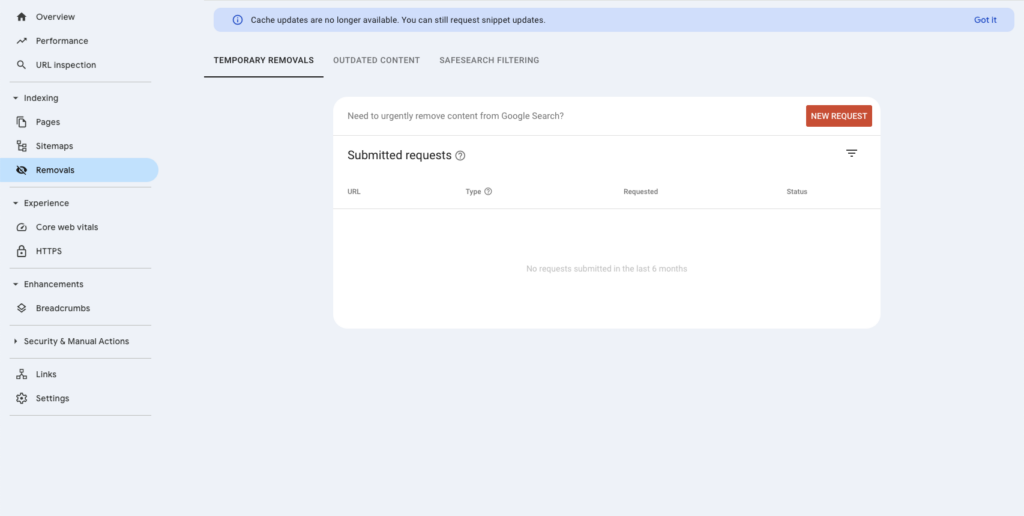
Google Search Console has a Removals Tool that lets you temporarily remove a website from Google search. This is the fastest method, pages typically disappear within hours.
Here’s how:
- Log into Google Search Console
- Select the property (website) you want to work with
- Go to Indexing → Removals
- Click New Request
- Enter the URL you want to remove
- Choose whether to remove just this URL or all URLs with this prefix
- Click Submit Request
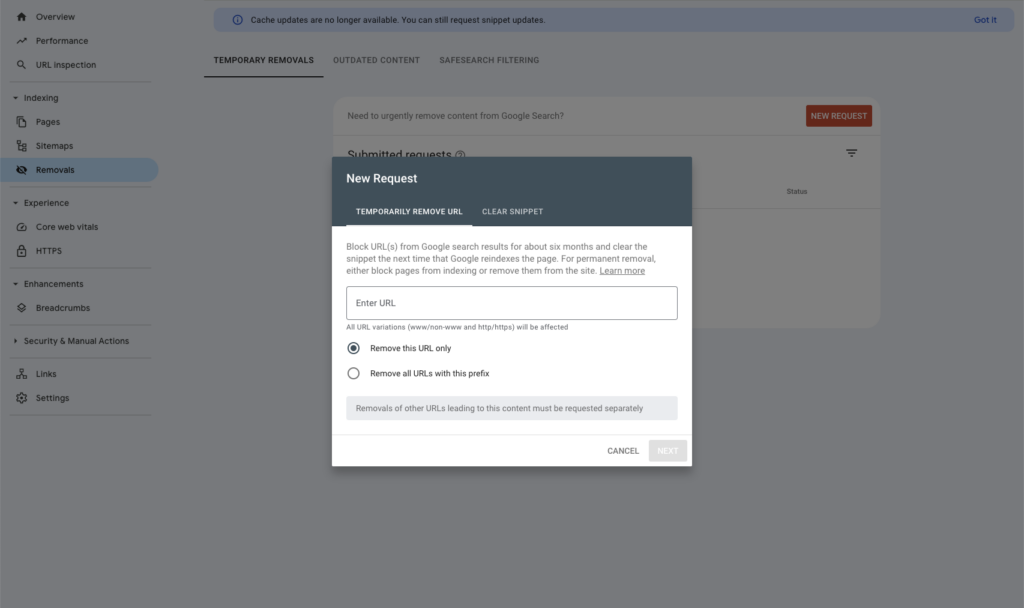
Important: This removal is temporary, it only lasts six months. After that, if the page is still accessible and crawlable, Google will reindex it. That’s why you need the next step.
Step 3: Make the Removal Permanent
The temporary removal buys you time. To permanently remove a website from Google Search, you need to ensure Google doesn’t reindex the page. You’ve got several options:
Delete the Page Entirely
If you want to remove a website from Google search for good, the simplest approach is to delete it entirely. If the page serves no purpose, delete it. Make sure it returns a 404 (Not Found) or 410 (Gone) status code. A 410 tells Google explicitly that the content has been permanently removed, which speeds up deindexing.
Redirect the Page (301)
A 301 redirect is another way to remove a website from Google Search while preserving link equity. This passes link equity to the new page and tells Google the old URL is gone for good.
Add a Noindex Meta Tag
If you want the page to exist but not appear in search results, add a noindex tag to the page’s HTML head:
<meta name="robots" content="noindex">This tells Google (and other search engines) not to include this page in their index. The page is still accessible if someone has the direct URL, but it won’t show up in search results.
If you’re using WordPress, you don’t need to touch the code. Most SEO plugins like Rank Math or Yoast let you set noindex on any page or post from the editor – just look for the ‘Advanced’ or ‘Robots’ tab in the plugin settings and switch from Index to No Index.
Password-Protect the Page
If you want to restrict access entirely, password-protect the page at the server level or through WordPress. Google can’t index what it can’t access.
What About robots.txt?
A common misconception: adding a page to robots.txt does not reliably remove it from Google. The robots.txt file tells crawlers not to crawl the page, but if other sites link to it, Google can still index the URL (it just won’t know the content). Use noindex instead, it’s far more reliable for deindexing pages.
Step 4: Request Google to Recrawl
After you’ve made your changes (deletion, redirect, or noindex tag), tell Google to check again:
- In Google Search Console, go to the URL Inspection tool
- Enter the URL you’ve changed
- Click Request Indexing
This prompts Google to recrawl the page and discover your changes faster than waiting for the next natural crawl.
Step 5: Remove Cached Content
Even after you remove a website from Google search, Google may still show a cached version for a while. To clear this:
- Use Google’s Outdated Content Removal Tool (this one’s available to anyone, not just site owners)
- Enter the URL of the cached page
- Submit the request
Google typically processes these within a few days.
WordPress Specific Methods to Deindex Pages
Since most of you reading this are WordPress users, let’s talk about the WordPress-specific ways to handle this. These are the WordPress specific ways to remove a website from Google Search that I use.
Using Rank Math SEO Plugin
If you’re running Rank Math (which the WP Odyssey blog uses), you can set individual pages or posts to noindex without touching code:
- Edit the page or post in WordPress
- Scroll down to the Rank Math SEO meta box
- Click the Advanced tab
- Set the Robots Meta to No Index
- Update the page
You can also bulk-noindex entire categories, tags, or post types from Rank Math → Titles & Meta.
Using Yoast SEO Plugin
Similar process with Yoast:
- Edit the page or post
- Scroll to the Yoast SEO meta box
- Go to the Advanced tab
- Set Allow search engines to show this page in search results? to No
- Update the page
WordPress Settings: Discourage Search Engines
WordPress has a built-in option under Settings → Reading called “Discourage search engines from indexing this site”. This adds a noindex tag site-wide.
Use this for staging and development sites only. I’ve seen people accidentally leave this ticked on live sites and wonder why they’ve disappeared from Google entirely. Check it now, seriously.
Noindex Plugins
If you don’t use Rank Math or Yoast, plugins like WP Robots Txt or Jenga Noindex let you add noindex tags to specific pages without an SEO plugin.
How to Remove Content You Don’t Own from Google
This is where it gets trickier. You don’t control the website, so you can’t just delete the page or add a noindex tag. But you still have options.
Contact the Website Owner
Start here. Find the site owner’s contact details (check their About page, WHOIS records, or social media) and ask them to remove the content. Many will comply, especially if you explain the situation clearly and politely.
Google’s Content Removal Policies
If the site owner won’t help (or you can’t reach them), Google offers several removal pathways:
Outdated Content Removal
If the content has already been removed from the website but still appears in Google’s cached results, use the Outdated Content Removal Tool. This is for situations where the page itself is gone but Google hasn’t caught up yet.
Legal Removal Requests
If the content violates laws (defamation, copyright infringement, court orders), you can submit a legal removal request to Google. You’ll need to provide evidence and legal documentation.
Personal Information Removal
Google has significantly expanded their personal information removal policies. You can now request removal of content that contains:
- Your personal contact information (phone number, email, physical address)
- Financial information (bank account numbers, credit card details)
- Government-issued ID numbers
- Confidential medical records
- Images of your signature
- Intimate personal images shared without your consent
- Content about you on doxxing sites
Submit requests through Google’s Personal Information Removal form.
Note: Google removes the content from search results, not from the website itself. The page will still exist, it just won’t appear when people search on Google.
GDPR and the Right to Be Forgotten
If you’re in the EU or UK, you have additional rights under GDPR (General Data Protection Regulation). The “Right to Erasure”, commonly known as the “Right to Be Forgotten”, means you can request that search engines delist results that are:
- Inaccurate or outdated
- No longer relevant
- Excessive in relation to the purpose they were collected for
How to Submit a Right to Be Forgotten Request
- Go to Google’s EU Privacy Removal Request form
- Fill in your details and identify the specific URLs you want delisted
- Explain why the content meets the criteria for removal
- Provide a copy of your ID for verification
- Submit the request
Google reviews each request on a case-by-case basis, weighing your privacy rights against the public interest in the information remaining accessible. Processing typically takes a few weeks.
Important: This only affects Google’s European search results. The content may still appear on google.com from other regions, and it remains on the original website.
Beyond Google: GDPR Requests to Website Owners
Under GDPR, you can also contact the website owner directly and request they delete your personal data. They’re legally obligated to respond within 30 days. If they don’t comply, you can escalate to your local data protection authority (the ICO in the UK).
How to Remove Images from Google Search
Images are a specific headache because they can persist in Google Images long after you’ve dealt with the source page.
If You Own the Website
- Delete the image file from your server (not just the page it appeared on, delete the actual image file)
- Use the Removals Tool in Google Search Console to request removal of the image URL
- Add a noindex header for the image file if you want it to exist but not appear in search:
X-Robots-Tag: noindex- Block the image directory in robots.txt (as a supplementary measure, not a replacement for noindex)
If You Don’t Own the Website
- Contact the site owner and request removal
- Use Google’s Personal Information Removal form if the image contains personal information
- For intimate images shared without consent, use Google’s specific removal form for explicit content
- For copyright violations, file a DMCA takedown request
How to Remove a Google Business Profile
If you need to remove a business listing from Google Search and Maps, here’s how:
Remove Your Own Business Profile
- Go to Google Business Profile Manager
- Select the business you want to remove
- Click More (the three-dot menu) → Remove business
- Confirm the removal
The listing will disappear from Google Search and Maps within a few days.
Mark a Business as Permanently Closed
If the business has closed but you want it to still appear (with a “Permanently closed” label):
- In Google Business Profile Manager, select the business
- Go to Info → Close this business on Google
- Select Permanently closed
Report Someone Else’s Fake or Inaccurate Business Listing
- Search for the business on Google Maps
- Click Suggest an edit
- Select Close or remove → choose the reason
- Submit
Google reviews these reports and may remove or correct the listing.
Removing Your Site from Bing, Yahoo, and Other Search Engines
Google isn’t the only search engine. If you want to truly remove a website from all search results, you’ll need to address the others too.
Bing (and Yahoo)
Yahoo’s search results are powered by Bing, so removing from Bing covers both.
- Sign up for Bing Webmaster Tools
- Add and verify your site
- Use the Block URLs tool to submit removal requests
- The
noindexmeta tag works for Bing just as it does for Google
DuckDuckGo
DuckDuckGo sources results from Bing and its own crawler. If you’ve removed content from Bing and added noindex tags, DuckDuckGo will follow suit. There’s no separate webmaster tool.
Other Search Engines
For smaller search engines (Yandex, Baidu, etc.), the noindex meta tag is universally respected. If you’ve added it, you’re covered across the board.
This is exactly why I recommend the noindex approach over relying solely on Google’s Removals Tool, it works for every search engine simultaneously.
Removing Content from the Wayback Machine
Even after you’ve removed a page from every search engine, it might still be archived on the Wayback Machine. If you want it gone from there too:
- Email [email protected]
- Include the specific URLs you want removed
- Explain that you’re the site owner (or provide legal grounds for removal)
- They typically process requests within a few weeks
Alternatively, adding this to your robots.txt will prevent future archiving:
User-agent: ia_archiver
Disallow: /
Step-by-Step Summary: The Complete Removal Checklist
Here’s my go-to checklist when I need to remove a website from Google search. I use this across client sites regularly:
- ✅ Back up your site before making any changes
- ✅ Use the Removals Tool in Google Search Console for immediate (temporary) removal
- ✅ Delete, redirect, or noindex the page to make the removal permanent
- ✅ Request recrawling via URL Inspection in Search Console
- ✅ Clear cached content using the Outdated Content Removal Tool
- ✅ Handle Bing via Bing Webmaster Tools
- ✅ Check the Wayback Machine and request removal if needed
- ✅ Verify removal by searching
site:your-domain.comafter a few days
Frequently Asked Questions
Here are the most common questions to help you remove a website from Google Search.
How long does it take to remove a website from Google Search?
Temporary removals via the Removals Tool typically take effect within hours, when I ran mine, the pages were gone in under three hours. Permanent removal through deindexing can take anywhere from a few days to several weeks, depending on how frequently Google crawls your site.
Will deleting a website remove it from Google immediately?
No. Even after you delete a site completely, Google may display cached results for days or weeks. You should submit a removal request through Search Console and use the Outdated Content Removal Tool to speed things up.
Can I remove a page from Google without deleting it?
Yes. Add a noindex meta tag to the page. This tells Google not to include it in search results while keeping the page accessible to anyone with the direct URL. Both Rank Math and Yoast make this easy in WordPress, no code needed.
Does removing a site from Google remove it from other search engines?
No. Google’s Removals Tool only affects Google. You’ll need to separately handle Bing (which also covers Yahoo), and ideally add a noindex meta tag which works universally across all search engines.
How do I remove personal information from Google?
Use Google’s Personal Information Removal form. Google now accepts requests to remove phone numbers, email addresses, physical addresses, financial information, and ID numbers. If you’re in the EU or UK, you can also submit a Right to Be Forgotten request under GDPR.
Can I remove someone else’s website from Google?
Only under specific circumstances. You can request removal of content that contains your personal information, violates copyright, or breaches legal policies. You cannot simply request that a competitor’s website be removed from search results.
How do I stop Google from indexing my WordPress staging site?
I
f you want to stop Google indexing your WordPress staging site, or need to remove a website from Google Search entirely, do this: Go to Settings → Reading in your WordPress dashboard and tick “Discourage search engines from indexing this site”. Better yet, use your hosting provider’s staging tools which typically block indexing by default, or password-protect the staging environment at the server level.
What’s the difference between the Removals Tool and the Outdated Content Removal Tool?
The Removals Tool (in Search Console) is for site owners who want to temporarily hide their own URLs from search results. The Outdated Content Removal Tool is available to anyone and is designed for requesting removal of cached content that no longer exists on the live page.
Can I remove my Google Business Profile from search?
Yes. Log into Google Business Profile Manager, select your business, and choose to remove it. If you just want to mark it as closed rather than deleting it entirely, you can set the status to “Permanently closed” instead.
Will a robots.txt file remove pages from Google?
Not reliably. The robots.txt file prevents crawling but not indexing. If other websites link to your page, Google can still add it to its index based on those external signals. Always use a noindex meta tag for reliable deindexing.
Take Control of Your WordPress Site
Now that you’ve learned how to remove a website from Google search, the right way and you understand how Google indexes (and deindexes) your site, this is just one piece of the WordPress puzzle. If you want to properly master WordPress, from SEO and security to building and managing sites like a professional, that’s exactly what I teach at WP Odyssey.
I’ve been running WordPress sites for over 15 years through my agency, and I built WP Odyssey to share everything I’ve learned the hard way. Whether you’re just getting started or you’ve been using WordPress for years and want to level up, the community on Skool is the place to be.
👉 Join WP Odyssey for free and start mastering WordPress
Got questions about removing a page from Google, or anything else WordPress-related? Drop a comment below or come find me in the WP Odyssey community.