
I have been using WP Rocket on client WordPress sites for years, and it is still the performance plugin I keep coming back to.
In the video below, I walk through the exact WP Rocket setup I use across the client websites I manage. I start with a real WordPress site that was scoring badly and desperately needed the help of WP Rocket, work through my usual settings one by one, and show the before-and-after results.
Table of Contents
The headline result was a jump from 32 to 100 inside Rocket Insights. Google PageSpeed Insights also improved to 95 on desktop and that was before I even touched image optimisation.
It is important to highlight that I am not saying every site will instantly hit 100 in Google PageSpeed Insights. Speed scores move around, every site is different, and caching is only one part of performance. But with the right setup, WP Rocket can make a big difference very quickly.
Watch the full walkthrough here:
Quick note: this video is in partnership with WP Rocket. I said yes because I already use WP Rocket on client sites and have done for years. The settings, the workflow and the opinions below are based on how I actually use it.
Why Website Speed Matters
Website speed is not just a technical score in a testing tool.
It affects:
- how Google sees your site
- how long people stay on your pages
- how likely visitors are to trust you
- how many people convert into leads or customers
So it’s really important to get it right. Google uses Core Web Vitals as part of how it evaluates websites. If your site is slow, unstable or frustrating to use, that can affect how well it performs in search.
So even if you ignored Google completely, speed would still matter.
Most people are visiting websites on mobile. They might be on 4G, 5G, public Wi-Fi or a weak connection. If the page takes too long to load, they are not going to sit around waiting. They will hit the back button and choose someone else.
A fast site feels more professional before anyone has read a single word. Just think about your own experiences, would you hang around on a slow clunky site, even if it looked pretty? I know I wouldn’t.
Why I Use WP Rocket
There are plenty of WordPress performance plugins out there. Some are free, some are paid, and some are tied to specific hosting setups.
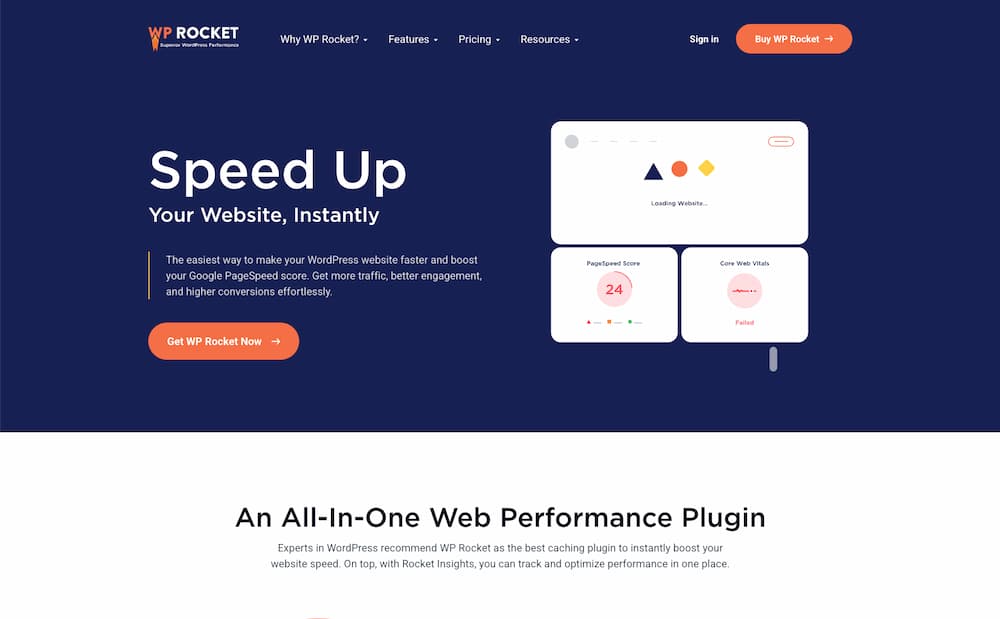
The reason I keep using WP Rocket is simple: it gets good results without turning every site into a technical project.
Here is why I like it.
It Works Straight Away
One of the best things about WP Rocket is that caching starts as soon as you activate it.
You do not need to spend an hour filling in settings before anything happens. Install it, activate it, and you can usually see some improvement straight away.
On client sites, that matters. I want tools that save time, not tools that create another job.
It Replaces Several Plugins
WP Rocket can handle a lot of the performance work people often split across multiple plugins:
- page caching
- CSS and JavaScript optimisation
- lazy loading
- database cleanup
- font preloading
- cache preloading
- Cloudflare integration
Fewer plugins usually means fewer conflicts, fewer updates and less general WordPress clutter.
It Is Built for Real WordPress Users
WP Rocket is not just for developers. The dashboard is clean, the settings are explained clearly, and the defaults are sensible.
That does not mean you should randomly switch everything on. You still need to test properly. But compared with a lot of speed plugins, WP Rocket feels much easier to work with.
It reminds me a bit of picking up an iPhone for the first time. You might not know every feature yet, but the basics make sense quickly.
Rocket Insights: The New Feature I Really Like
One of the things I wanted to show in this video was Rocket Insights.
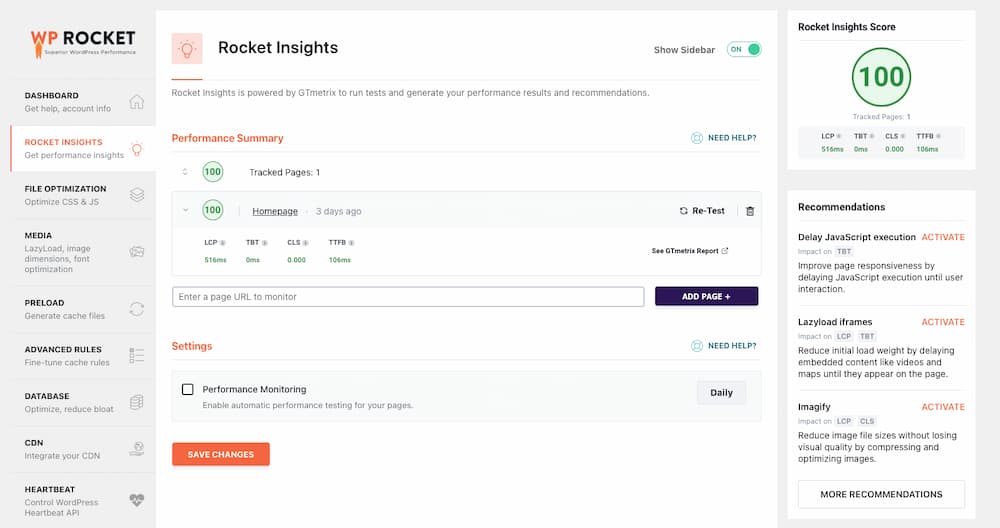
This is a newer WP Rocket feature that brings performance monitoring into the WP Rocket dashboard. It is powered by GTmetrix and included with every WP Rocket licence.
Instead of constantly jumping between WordPress, GTmetrix and PageSpeed Insights, you can monitor important pages from inside WP Rocket itself.
Rocket Insights can track up to 10 pages and shows key performance metrics like:
- LCP, Largest Contentful Paint
- CLS, Cumulative Layout Shift
- TBT, Total Blocking Time
- TTFB, Time To First Byte
It also gives recommendations and links those recommendations back to WP Rocket settings that can help fix the issue.
For me, the most useful part is the monitoring.
Historically, I might optimise a site as a one-off job, get the scores up, and then move on. But websites change. Clients add images, install plugins, update themes and change pages.
With Rocket Insights, you can schedule checks daily, weekly or monthly. That means you can spot speed regression before the client notices, and before visitors start bouncing.
For anyone offering WordPress care plans or ongoing optimisation, that is a really useful addition.
My Standard WP Rocket Setup
In the video, I work through WP Rocket the way I usually do it on client sites.
The important thing is not just which settings I use. It is the order.
Do not turn everything on at once.
That is one of the biggest mistakes people make with caching and performance plugins. They enable every feature, something breaks, and then they have no idea which setting caused the problem.
My rule is simple:
- Make one change.
- Save it.
- Clear cache.
- Hard refresh or test in incognito.
- Check the site still works thoroughly (Desktop and Mobile).
- Move to the next setting.
That way, if something breaks, you know exactly what caused it.
File Optimisation
This is where a lot of the big wins happen.
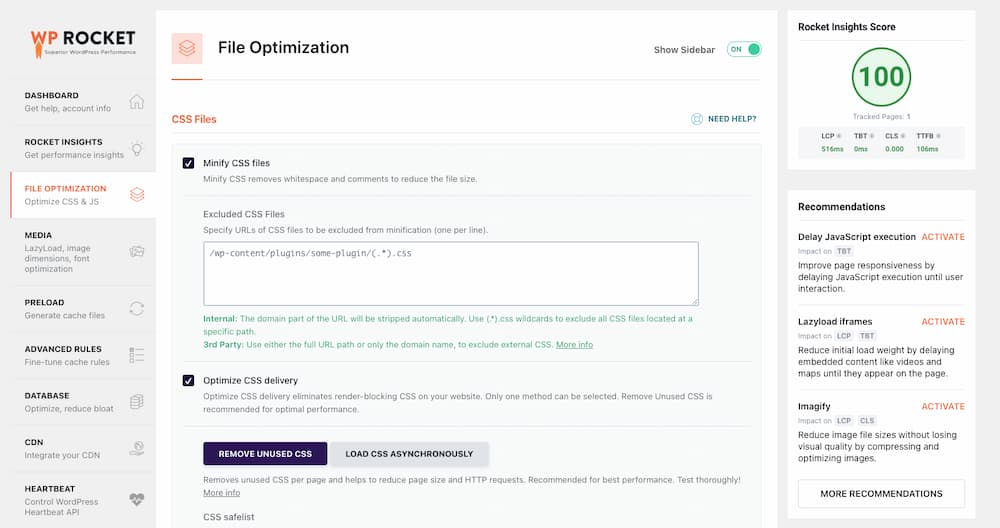
The first setting I usually enable is minify CSS.
CSS files often contain spacing, comments and formatting that make them easy for developers to read but add unnecessary weight for the browser. Minifying CSS removes that extra bulk and makes the files smaller.
In the video, enabling CSS minification gave a huge early improvement in Rocket Insights.
After that, I look at CSS delivery.
WP Rocket gives you options for optimising CSS delivery, including removing unused CSS. This can be powerful because most WordPress sites load CSS that is not needed on every page.
But like with anything that changes how files load, you need to test the site afterwards.
Then I move on to JavaScript.
I usually enable:
- minify JavaScript files
- load JavaScript deferred
I am more careful with:
- combine JavaScript files
- delay JavaScript execution
Combining JavaScript can reduce requests, but it can also cause problems, especially on modern sites or sites using HTTP/2.
Delay JavaScript execution can give a big score boost, but it can also make parts of the page look broken until the visitor interacts with it. If your hero section, slider, menu or animation relies on JavaScript, this setting needs proper testing.
I do use it when it makes sense, but it is usually one of the last things I enable and it can require some delicate customisation but it is so worth it..
Media Settings
The media tab is usually safer to work through.
I enable lazy loading for:
- images
- CSS background images
- iframes and videos
Lazy loading means the browser does not load everything on the page immediately. If an image is halfway down the page and the visitor never scrolls to it, there is no point loading it straight away.
This is especially useful on mobile, where visitors might be on a weaker connection.
I also enable missing image dimensions.
This helps the browser understand how much space an image needs before it has fully loaded. That can reduce layout shift, which is one of the things Google measures with Core Web Vitals.
It is worth noting at this stage if you do use a separate image optimisation plugin, these settings may get deactivated to avoid conflicts.
Preload Settings
Preloading helps WP Rocket prepare pages before visitors need them.
I enable cache preloading so WP Rocket can build the cache ahead of time.
I also like link preloading, but this one is worth understanding.
When someone hovers over a link, WP Rocket can start loading that page in the background before they click. That can make the site feel much faster.
The downside is that it can use more server resources. If your site gets a lot of traffic, or your hosting is already under pressure, you may want to test this carefully.
For most small business websites and client brochure sites, I like it.
Database Cleanup
WP Rocket can also clean up parts of the WordPress database.
I normally clean:
- auto drafts
- trashed posts
- spam comments
- trashed comments
- transients
- database table overhead
I usually schedule that weekly.
The one thing I am careful with is post revisions.
I do not automatically clear revisions on client sites by default. Clients sometimes need to roll a page back to an earlier version. If you delete all the revisions, that option has gone.
I have made that mistake before, so now I leave revisions alone unless there is a specific reason to clear them.
Heartbeat and Cloudflare
WP Rocket also lets you reduce WordPress Heartbeat activity.
Heartbeat is a WordPress API that runs in the background. It is useful, but on some sites it can use more resources than necessary.
I normally set it to reduce activity rather than disable it completely. That gives you a sensible middle ground without breaking anything that depends on it.
If the site uses Cloudflare, I also connect WP Rocket to Cloudflare.
Cloudflare is free, adds a useful layer of performance and security, and is something I recommend for most websites. Connecting it to WP Rocket means cache clearing can be handled more cleanly between the two tools.
The Result From The Video
The test site in the video started in a bad place.
At the beginning:
- Google PageSpeed Insights mobile score was around 22
- desktop was around 79, then fluctuated during testing
- Rocket Insights showed a starting score of 32
After working through the WP Rocket setup, the site reached:
- 100 in Rocket Insights
- 69 mobile in Google PageSpeed Insights
- 95 desktop in Google PageSpeed Insights
That was before doing proper image optimisation, which is important to highlight.
Caching and file optimisation can make a huge difference, but if your website is full of massive 5MB images, WP Rocket is not going to magically fix that by itself.
For image optimisation, you should also look at tools like Smush, ShortPixel, Imagify or WebP Express.
I will probably cover image optimisation separately because it deserves its own video.
Common WP Rocket Mistakes
Here are the mistakes I would avoid if you are setting up WP Rocket for the first time.
Turning Everything On At Once
This is the big one.
Do not enable every setting and hope for the best.
Some settings can break styling, menus, sliders, forms, animations or tracking scripts. If you turn everything on at once, you will not know which setting caused the issue.
Enable one thing at a time and test properly.
Only Testing In Your Normal Browser
WP Rocket clears its own cache when you save settings, but your browser cache can still show you old files.
Use an incognito window, a different browser, or do a hard reload after opening the browser inspector.
Otherwise you might think something is broken when you are just looking at cached files.
Ignoring Mobile
A lot of people obsess over the desktop score because it is usually easier to get a nice green number.
But most traffic is mobile.
Mobile visitors are often on slower connections, smaller devices and less patient sessions. If your mobile score is poor, that is the one I would focus on.
Skipping Image Optimisation
Caching alone will not save a site full of oversized images.
WP Rocket can lazy load images and help with dimensions, but it is not an image compression tool. You still need to compress images, resize them properly and serve next-gen formats like WebP where possible.
Treating Speed As A One-Off Job
Websites change over time.
That is why I like Rocket Insights. You can monitor pages regularly and catch performance problems before they become bigger issues.
If you manage client websites, this also makes speed optimisation easier to include in an ongoing care plan rather than treating it as a one-off job.
Is WP Rocket Worth It?
For me, yes.
There are free options out there, including LiteSpeed Cache, Hummingbird and W3 Total Cache. Depending on your hosting and setup, some of those can work well.
But across the kind of client websites I manage, WP Rocket gives me the best balance of results, ease of use, support and speed of setup.
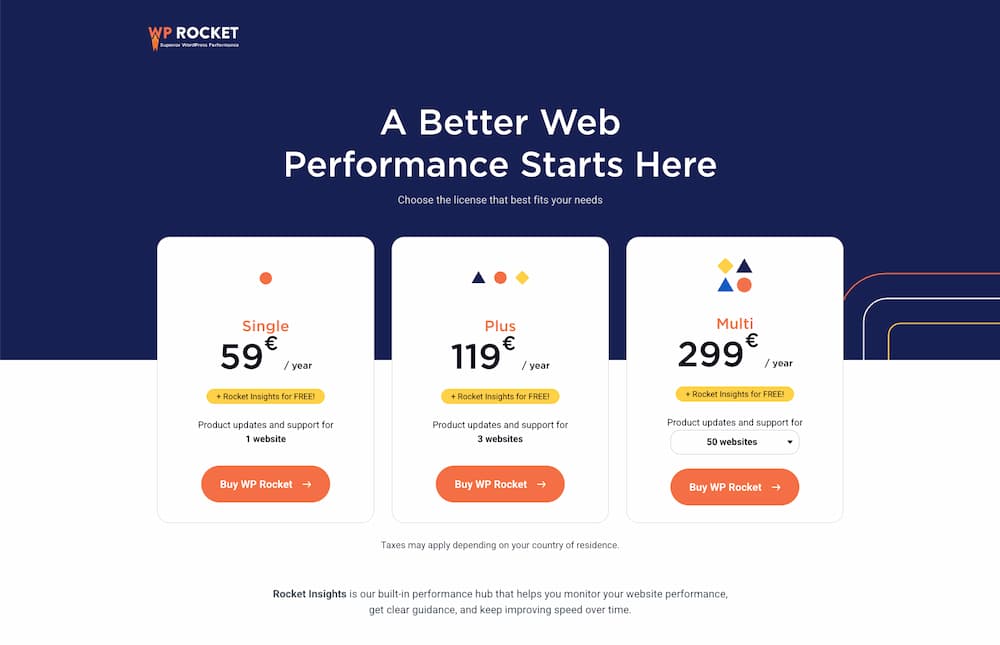
The licence cost is tiny compared with the time it saves when you are managing multiple sites.
If you are only running one small hobby site, you might be happy with a free plugin. But if your website matters to your business, or you manage sites for clients, WP Rocket is worth looking at.
Get WP Rocket
You can get WP Rocket here.
If you use my link, it does not cost you anything extra and I may earn a commission. I only recommend tools I actually use, and WP Rocket is one I have used on client sites for years.
Watch The Full Walkthrough
The video version shows the full setup, every setting I enable, and the before-and-after results on a real WordPress site.
Watch it here:
If you have any questions about WP Rocket, caching, Cloudflare or WordPress speed optimisation, leave a comment on the video and I will help where I can.
Frequently Asked Questions
Is WP Rocket worth it?
For me, yes. There are free performance plugins available, but WP Rocket gives a good balance of results, ease of use and reliability. If you manage client websites or your own business site, the time it saves can easily justify the cost.
Will WP Rocket make my WordPress site score 100 on Google PageSpeed Insights?
Not always. WP Rocket can make a big difference, but your final score depends on your theme, hosting, images, third-party scripts, fonts and plugins. In my test, Rocket Insights reached 100, while Google PageSpeed Insights ended at 69 on mobile and 95 on desktop before image optimisation.
Do I still need image optimisation if I use WP Rocket?
Yes. WP Rocket can help with lazy loading and missing image dimensions, but it does not replace proper image compression. You still need to resize images, compress them and use formats like WebP where possible.
Can WP Rocket break a website?
It can if you turn on lots of optimisation settings without testing. The safer way is to enable one setting at a time, clear the cache, then check the site on desktop and mobile before moving on.
Does WP Rocket work with Cloudflare?
Yes. WP Rocket can connect with Cloudflare so cache clearing is handled more cleanly. I usually use Cloudflare on client sites because it adds a useful layer of performance and security.
Should beginners use WP Rocket?
Yes, but still test carefully. WP Rocket is easier to use than many performance plugins, but settings like JavaScript delay, CSS optimisation and file combining can still affect how a site loads.
Disclosure: this video and post are in partnership with WP Rocket. The settings, results and opinions are based on my own workflow from managing client WordPress websites. If you buy through my WP Rocket link, I may earn a commission at no extra cost to you.