
If you run a WordPress site, security isn’t optional. It’s the thing standing between you and a very bad day. This is your complete WordPress Security Guide to avoid disaster.
I’m Dan Davies. I run Gecko Brand+ Digital Media, a WordPress agency managing 100+ client sites, and WP Odyssey, where I teach WordPress the way I wish someone had taught me. I’ve been building with WordPress for over 15 years, and in that time I’ve seen just about every security disaster you can imagine, often firsthand.
This WordPress security guide is everything I know about WordPress security, distilled into a step-by-step plan you can actually follow. Whether you’re running a single blog or dozens of client sites, this is the guide I wish I’d had when I started.
Why WordPress Security Matters
Back in 2012, I learned this lesson the hard way. I had started managing WordPress sites and I guess I’d neglected them, updates were piling up, no security plugins, the works. One morning I woke up to find that one of the sites had been defaced. The homepage was replaced with some hacker’s calling card, and the database was a mess.
It was embarrassing. It was avoidable. And it changed the way I approach every WordPress build to this day. I remember the day like it was yesterday and I remember exactly where I was when the client called me to ask me why there was a Thai Tiger on a black screen with the words ‘Hacked’ on their website. I instantly called my host and realised that the issue was a lot worse than just one site. The hackers had got in to the server due to out of date WordPress plugins on some sites and infected other sites too. This was the day I was introduced to WordPress security and why it has become the cornerstone to everything I do when it comes to WordPress. Luckily we had backups and could restore things but it was one of the worst days of my life. I was on the phone for hours with my host while we tried to restore and lock down the sites.
WordPress powers over 40% of the web in 2026. That makes it the biggest target for automated attacks. Bots don’t care how small your site is. They scan everything, looking for outdated plugins, weak passwords, and misconfigured servers. If you’ve got a WordPress site, you’re a target. Full stop.
The good news? Most WordPress hacks are preventable. You don’t need to be a server admin or a cybersecurity expert. You just need to follow the right steps, consistently.
What We Find When We Audit Client Sites
This is the bit most WordPress security guides can’t give you, because most of them are written by content teams, not professionals. I run an agency. I manage real sites for real clients. And security isn’t something we do once – it’s something we do continuously across all 100+ of Gecko’s client sites.
When a new client comes to Gecko, the first thing we do is run a full security audit. After onboarding over 75 clients, I can tell you the results are almost always the same. Here’s what we typically find:
- Malware or suspicious code on roughly 1 in 5 sites – often sitting there undetected for weeks or months before the client comes to us
- Outdated plugins with known vulnerabilities – patches available but never applied, leaving the front door wide open
- Themes or plugins from dodgy sources, bundled with obfuscated code that hides backdoors
- Leftover staging or backup files sitting in publicly accessible directories for anyone to download
- Weak admin passwords – more common than I’d like to admit, and often the same password reused across multiple sites
- Incorrect file permissions – giving write access where there should be none, making it easy for attackers to modify files
On one recent client audit, we found 8 issues on a single site – abandoned plugins with no updates in over 2 years, a known vulnerability in a checkout plugin, and a suspicious PHP file that didn’t belong there. This was a live WooCommerce site taking payments and in all honesty, wasn’t fit to be online.
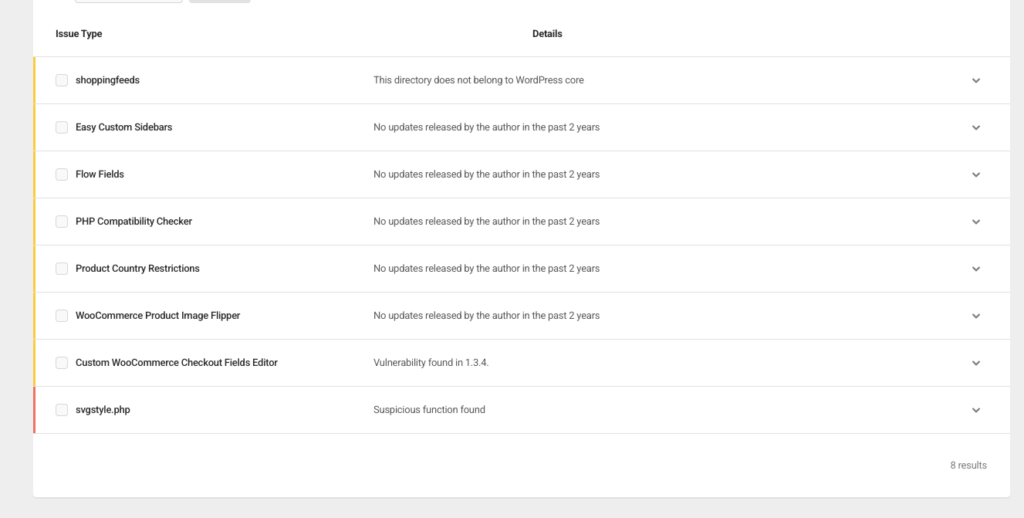
The biggest takeaway? Most of these issues aren’t sophisticated attacks. They’re basic hygiene failures. Plugins not updated, passwords reused, backups not checked. The boring stuff.
This is exactly why ongoing security management matters. These issues don’t just appear once – they creep back in if nobody’s watching. It’s one of the most valuable things we do at Gecko, and it’s why so many of our clients sleep better at night knowing someone is keeping an eye on things.
If you want professionals to handle this for you, that’s exactly what we do at Gecko. If you want to learn how to do it yourself, that’s what WP Odyssey was created for.
If you take one thing from this WordPress security guide, let it be this: the basics matter more than the fancy stuff. Get the fundamentals right and you’ll stop 95% of attacks before they start.
Keep WordPress Updated
This is number one for a reason. The vast majority of hacked WordPress sites are running outdated software, whether that’s WordPress core, plugins, or themes.
Every update isn’t just about new features. It patches security vulnerabilities that have been publicly disclosed. Once a vulnerability is public, attackers build automated tools to exploit it. The window between disclosure and exploitation is getting shorter every year.
What to update and when:
- WordPress core – Enable auto-updates for minor releases (they’re security patches). For major releases, update within a week of release after checking compatibility.
- Plugins – Update weekly at minimum. If a plugin releases a security patch, update immediately.
- Themes – Same as plugins. Don’t forget parent themes if you’re using a child theme.
- PHP version – Keep your server running a supported PHP version. Anything below PHP 8.1 in 2026 is a risk.
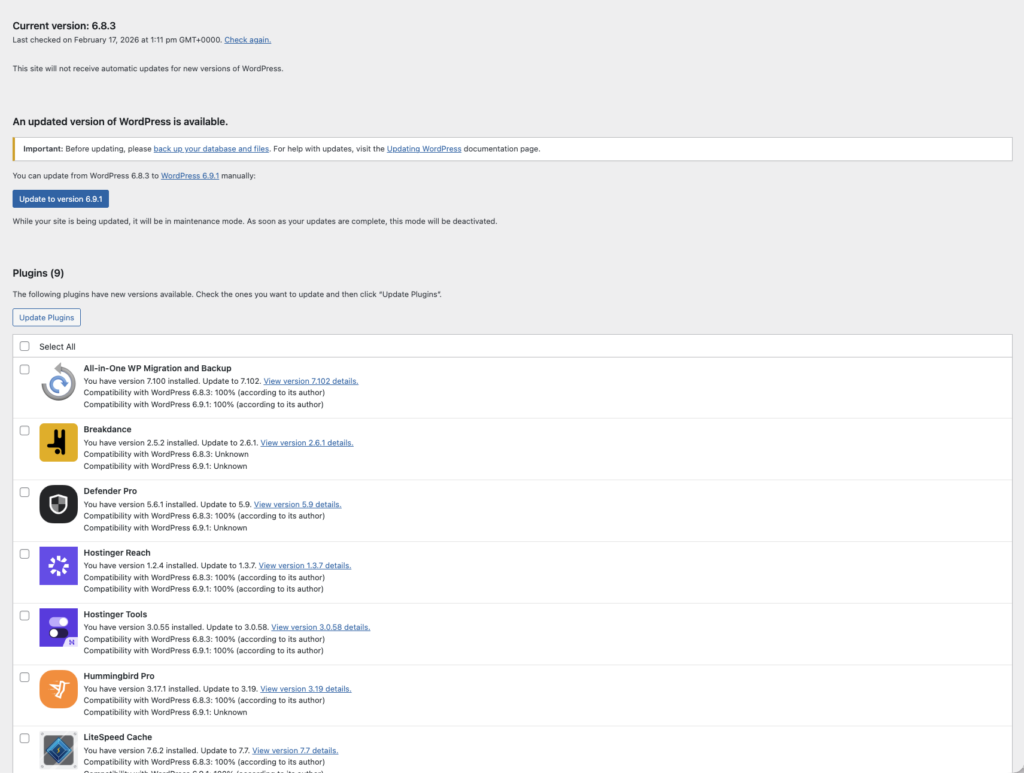
Pro tip from managing 100 sites: We use a management tool to update all our client sites from one dashboard. If you’re managing more than a handful of sites, this is essential. Tools like MainWP, ManageWP, or WPMU DEV’s The Hub make this manageable.
Strong Passwords and User Permissions
Here’s a story that still makes me cringe. Years ago, I was working on a client’s site and discovered their admin username was literally “admin” with a password I won’t repeat here, but let’s just say it was embarrassingly simple. It took me about three seconds to guess it.
That site had been quietly compromised for weeks. Spam links injected into posts, redirects to dodgy pharmaceutical sites, the lot.
Password rules that actually work:
- Use a password manager (I use 1Password, but Bitwarden is a solid free option)
- Every WordPress account gets a unique, generated password – minimum 16 characters
- Never share passwords over email or chat
- Change passwords immediately if anyone who had access leaves your team
User permissions matter just as much:
- Never give someone Administrator access when Editor will do
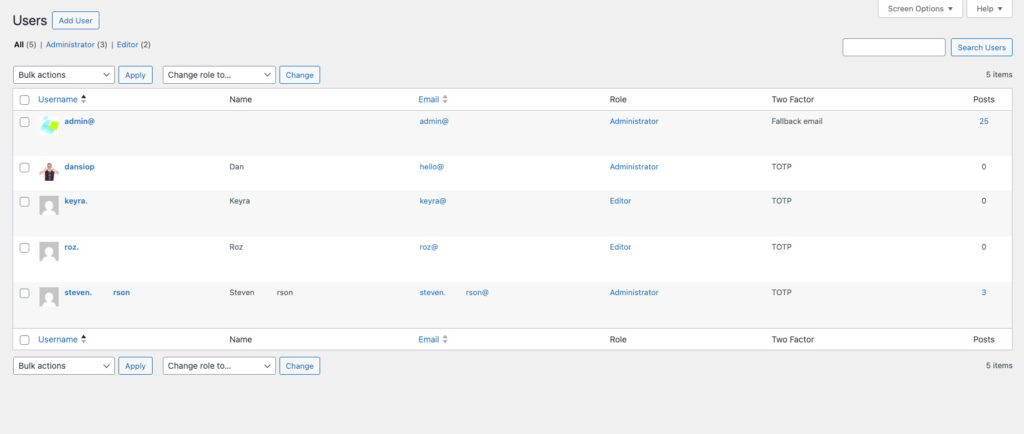
- Audit user accounts quarterly – remove anyone who no longer needs access
- Use the principle of least privilege: every user gets the minimum access they need, nothing more
- Delete the default “admin” username. Create a new administrator account with a unique username, then delete “admin”
Using the username ‘admin’ is like leaving your front door key under the mat. Think about it – someone only needs three things to take full control of your site: the login URL, the username, and the password. WordPress uses /wp-admin by default, so that’s already known. If your username is ‘admin’, that’s their first guess. Now all they need is the password, and brute force databases have billions of them. You’ve basically handed over two of the three keys and left them to guess the last one.
Choose Secure Hosting
Your hosting environment is the foundation of your site’s security. Get this wrong and nothing else matters.
I once saw an ad for free WordPress hosting. Out of curiosity, I signed up to test it. The “free” hosting came with injected ads, no SSL, shared IP addresses with hundreds of other sites (some of them very dodgy), and zero support.
I thought I had hit the jackpot with free hosting. It wasn’t until my clients started calling me asking why there were all these weird ads popping up on their website I realised I had made a mistake. I quickly migrated everything away to real hosting before anyone else noticed.
Not all hosting is created equal, so be prepared to move as you outgrow your current host. It’s part of the journey. But you can reduce the number of moves by choosing the right host from the start. Here’s what to look for:
- Server-level firewalls and intrusion detection
- Automatic backups (but don’t rely solely on these)
- Free SSL certificates (standard in 2026, walk away if they charge extra)
- Isolated accounts – your site shouldn’t be affected if another site on the same server is compromised
- Regular server software updates – ask your host about their patching schedule
- Support that understands WordPress – when something goes wrong, you need people who know the platform
The Shared Hosting Risk
Shared hosting is where most people start, and that’s fine. But you need to understand the risks.
On shared hosting, your site lives on a server with dozens or even hundreds of other sites. If one of those sites gets compromised and the server isn’t properly configured, the attacker can potentially move laterally to your site.
How to mitigate shared hosting risks:
- Choose hosts that use proper account isolation (CloudLinux, CageFS, or similar)
- Keep your own security tight so you’re not the weak link
- Consider upgrading to managed WordPress hosting as your site grows – the security benefits alone are worth the extra cost
At Gecko, we’ve settled on ANS (formerly UKFast) for dedicated managed servers. That’s overkill for most beginners, but we grew into it as our demands grew. If you’re starting out, I’d recommend SiteGround or Hosting.com [Affiliate Link] – both offer solid WordPress hosting with good security defaults at a reasonable price. WordPress.org also maintains a list of recommended hosts.
If you’re serious about WordPress, invest in proper hosting. It’s the one area where spending a bit more pays for itself many times over. I’ve seen too many people lose entire sites because they chose hosting based on price alone. Your investment will not only help on the security front but also on the site performance front.
Back Up Your Site Properly
I had a client once who thought they were covered because their host did daily backups. When their site went down, they called the host and asked to restore from backup. The host’s backup? Seven days of rolling backups, and the malware had been sitting there for three weeks. Every single backup was infected.
That was an expensive lesson. Not for me, but for the client who had to pay for a manual cleanup.
So here are the backup rules I live by:
- Keep your own backups – don’t rely solely on your host
- Store backups off-site – a backup on the same server as your site is useless if the server crashes or dies
- Keep 30+ days of backups – so you can restore from before an infection
- Test your backups – a backup you’ve never tested is a backup that might not work
- Automate it – if it requires you to remember to do it, it won’t get done
My preference at the moment is to use either UpdraftPlus [Plugin] and store the backups on Dropbox, or to use WPMU Dev’s Snapshot Plugin depending on the clients level of support. Both offer great features to ensure you’re never short on a backup. Chances are you’ll never need them but it’s a bit like insurance. The moment you stop paying, you’ll wish you still had it. For a deeper dive into backup strategy, read How Often Should You Back Up Your WordPress Site?
Install a Security Plugin
A good security plugin is like a burglar alarm for your WordPress site. It won’t stop a determined attacker on its own, but it raises the bar significantly and alerts you when something’s wrong.
I use Defender Pro from WPMU DEV across all our Gecko sites. It handles malware scanning, firewall rules, login protection, two-factor authentication, and security recommendations, all from one plugin.
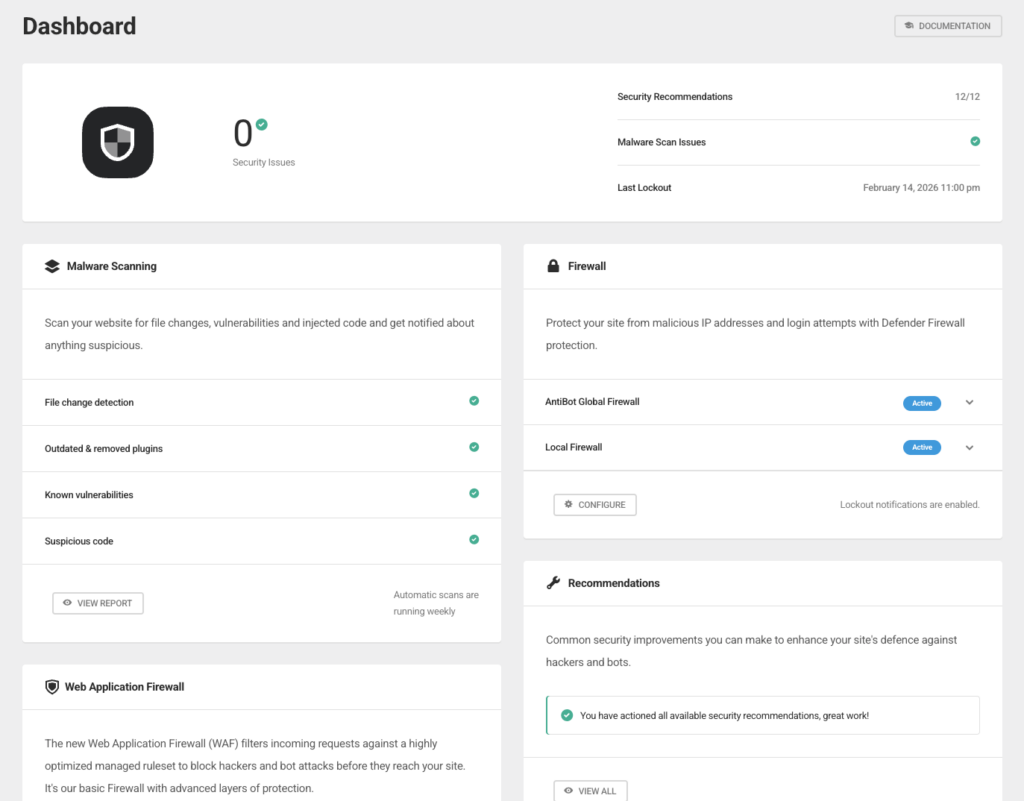
I used to be a massive advocate for Wordfence and used it on all of my clients websites but I never really got on with it. I felt it looked dated and was far too confusing – It made changes to your website that in some instances broke the site and uninstalling it was a right mess with manual steps. When I found Defender Pro it felt like (for those of you that are old enough) going from using a Blackberry to an iPhone – there was no comparison. Everything felt right, it was clear what was going on and the site instantly felt more secure.
What a security plugin should cover:
- Malware scanning (scheduled and on-demand)
- Firewall rules
- Login attempt limiting
- Two-factor authentication
- File integrity monitoring
- Security headers
- Vulnerability alerts for installed plugins/themes
If you’re a WP Odyssey premium member, you get access to Defender Pro through our WPMU Dev hub as part of your membership.
Set Up a Web Application Firewall
A Web Application Firewall (WAF) sits between your site and the internet, filtering out malicious traffic before it reaches WordPress.
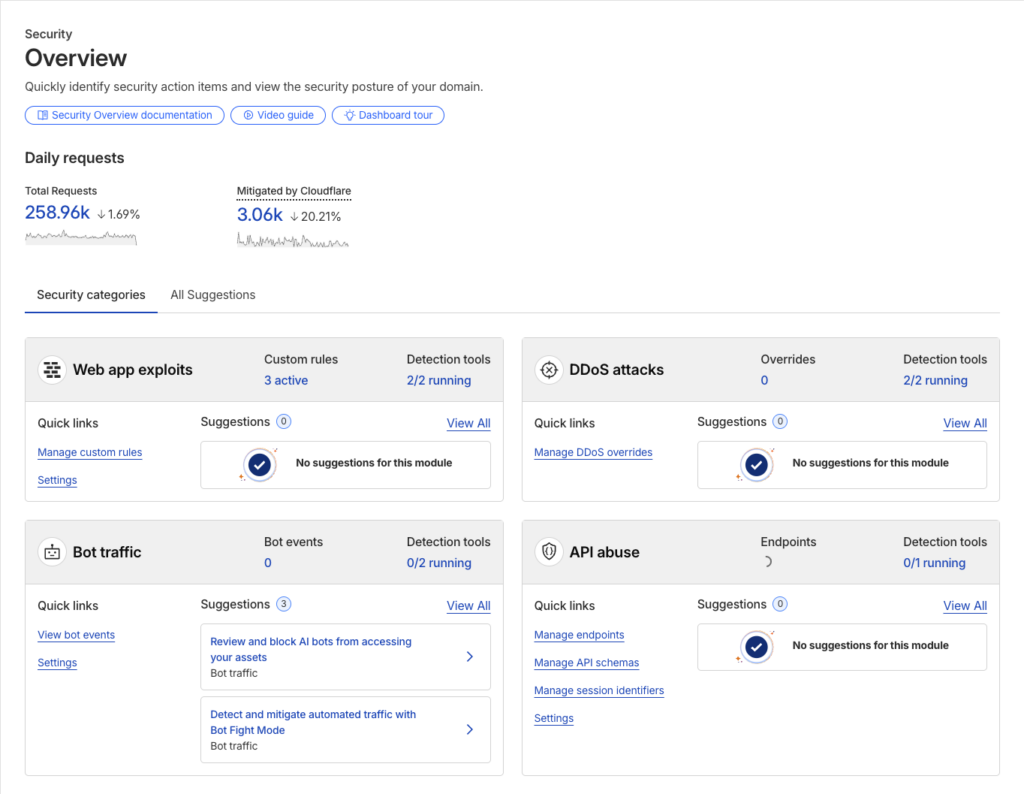
I use Cloudflare on most of our sites. The free tier gives you basic DDoS protection and a CDN, but the Pro tier adds the WAF rules that block common WordPress attacks.
Why you need a WAF:
- Blocks SQL injection, cross-site scripting (XSS), and other common attacks at the network level
- Reduces server load by filtering bad traffic before it hits your server
- Provides DDoS protection
- Gives you analytics on who’s attacking your site and how
Cloudflare blocks thousands of malicious requests per month across our sites, not only does it improve the security of our sites for our clients but it releases pressure on our servers which in turns helps with performance. Our clients sites are faster as a result of using this free security feature.
Setting up Cloudflare is straightforward:
- Create a free Cloudflare account
- Add your domain and update your nameservers
- Enable “Under Attack Mode” if you’re currently being targeted
- Configure page rules for your WordPress admin area
Enable SSL/HTTPS
In 2026, there’s absolutely no excuse for running a site without SSL. Google flags non-HTTPS sites as “Not Secure,” and it’s a confirmed ranking factor.
Most good hosts provide free SSL via Let’s Encrypt. If your host charges for SSL, that’s a red flag.
Quick SSL checklist:
- Install an SSL certificate (free via Let’s Encrypt or your host)
- Force HTTPS in WordPress Settings (update both WordPress Address and Site Address)
- Set up 301 redirects from HTTP to HTTPS
- Update any hardcoded HTTP links in your content
- Check for mixed content warnings using your browser’s developer tools
File Permissions and Ownership
This is one of the most overlooked areas of WordPress security, and one of the most common issues I found during our 100-site audit.
Incorrect file permissions can give attackers the ability to modify your files, inject code, or read sensitive information like your database credentials in wp-config.php.
The correct WordPress file permissions:
| What | Permission | Meaning |
|---|---|---|
| Directories | 755 | Owner can read/write/execute, others can read/execute |
| Files | 644 | Owner can read/write, others can read only |
| wp-config.php | 600 or 640 | Only the owner can read/write – no one else |
| .htaccess | 644 | Owner can read/write, others can read only |
How to check and fix file permissions:
You can fix permissions via SSH with two commands:
find /path/to/wordpress/ -type d -exec chmod 755 {} \;
find /path/to/wordpress/ -type f -exec chmod 644 {} \;
chmod 600 wp-config.php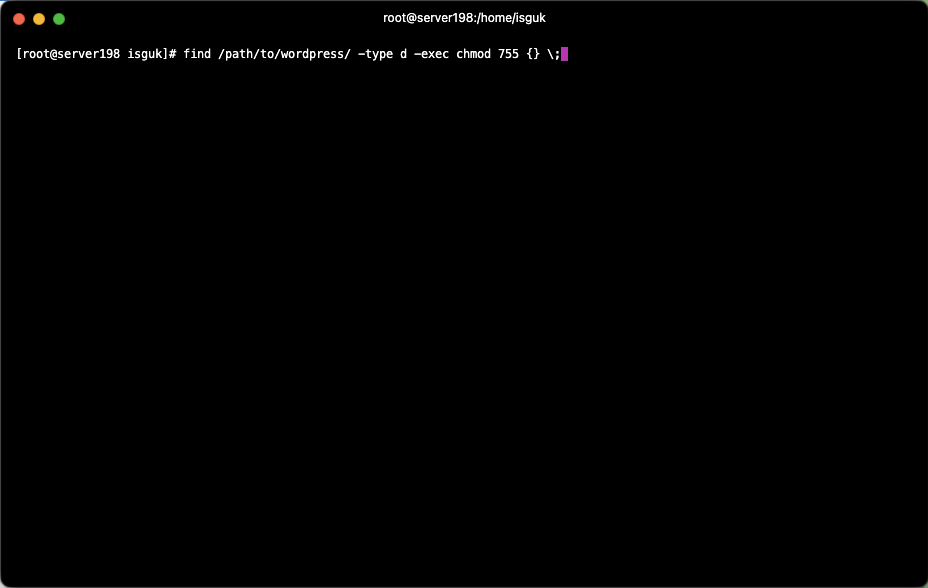
Common permission mistakes I see:
- Setting everything to 777 (full access for everyone) because “it fixes the error” – never do this
- Leaving wp-config.php at 644 when it should be 600
- Upload directories set to 777 instead of 755
Only Use Trusted Plugins and Themes
When onboarding new clients, several of the infected sites had one thing in common: plugins or themes downloaded from unofficial sources. “Nulled” or pirated premium plugins are one of the most common malware vectors in WordPress.
Rules for safe plugins and themes:
- Only download from WordPress.org, the developer’s official site, or reputable marketplaces (ThemeForest, WPMU DEV, etc.)
- Never use nulled/pirated plugins or themes – they almost always contain backdoors
- Check the last updated date – if a plugin hasn’t been updated in over a year, think twice
- Read reviews and check the support forum – abandoned plugins with unresolved security issues are a risk
- Fewer plugins = smaller attack surface – only install what you genuinely need
- Delete deactivated plugins – a deactivated plugin can still be exploited if it has a vulnerability
I once onboarded a client that told me he had the licenses for all of his premium plugins but in fact they were all downloaded from illegal sites online and when we ran security scans we found that several plugins he was using had known vulnerabilities that the genuine versions did not. It is important to be vigilant as to where you get plugins from and I always advise to use the genuine version with real license keys – the costs of not doing this is too high. You could lose your whole site.
Secure Your Computer and Network
This is the bit most WordPress security guides skip entirely, and it’s a blind spot I’ve become increasingly aware of.
Your WordPress site is only as secure as the devices you use to access it. If your laptop has a keylogger, it doesn’t matter how strong your WordPress password is.
Device security essentials:
- Keep your operating system and browser updated
- Use antivirus/anti-malware software (yes, even on Mac)
- Don’t access your WordPress admin over public WiFi without a VPN
- Enable full-disk encryption on your laptop
- Lock your screen when you step away
Network security:
- Use a VPN when working from cafes, hotels, or co-working spaces
- Secure your home router – change the default admin password, update firmware, use WPA3
- Consider a separate network for work devices if you work from home
- Be wary of browser extensions – they can capture form data including passwords
I once had a client whose site was hacked but in reality it was his laptop that had been compromised and this lead to a hacked site and a flood of spam emails. It is so important to be careful on what you click on while on the internet or in your email inbox. VPNs can help and while this is in no way a promotion of a VPN I have to say I have been very pleased with ExpressVPN. Affordable and easy to use.
Advanced WordPress Security Tips
This is the hands-on section for those who want to go further. These are changes you can make yourself, mostly through your .htaccess file, wp-config.php, or your security plugin.
Disable File Editing in the Dashboard
WordPress has a built-in code editor that lets administrators edit plugin and theme files directly. If an attacker gains admin access, this is the first thing they’ll use.
Add this to wp-config.php:
define('DISALLOW_FILE_EDIT', true);Disable PHP Execution in Uploads
The wp-content/uploads directory should only contain media files, never executable PHP. Create a .htaccess file in /wp-content/uploads/ with:
<Files *.php>
deny from all
</Files>
Limit Login Attempts
Brute force attacks hammer your login page with thousands of password attempts. Limiting login attempts stops this dead.
Most security plugins handle this, but you can also use a dedicated plugin like Limit Login Attempts Reloaded.
Enable Two-Factor Authentication (2FA)
2FA is non-negotiable in 2026. Even if someone gets your password, they can’t log in without the second factor.
I use 2FA on every admin account across all 100 client sites. No exceptions.
Defender Pro handles 2FA very well and is my go-to – why use multiple plugins when one can do.
Change the Database Table Prefix
The default WordPress database prefix is wp_. Changing it used to be standard advice, and you’ll still see it recommended in older guides. In practice, it’s security through obscurity – a determined attacker won’t be stopped by a different table prefix. If you’re setting up a fresh site, there’s no harm in changing it. But I wouldn’t risk changing it on an existing site – it can break things if not done carefully, and the security benefit is minimal.
Password Protect the Admin Directory
You can add an extra layer of authentication to /wp-admin/ using HTTP authentication (.htpasswd). This means attackers need to get through two login screens.
Disable Directory Indexing
Prevent people from browsing your site’s directory structure. Add this to your root .htaccess:
Options -IndexesDisable XML-RPC
XML-RPC is an older API that’s largely been replaced by the REST API. It’s a common attack vector for brute force and DDoS amplification attacks.
If you don’t use the WordPress mobile app or Jetpack, disable it:
add_filter('xmlrpc_enabled', '__return_false');Auto-Logout Idle Users
If someone walks away from their computer while logged into your site, that’s a risk. Plugins like Inactive Logout can automatically log out idle users after a set period.
Add Security Questions to Login
An additional layer on top of passwords and 2FA. Not essential, but useful for sites with multiple users.
Why Defender Pro Handles Most of This
If you’ve been reading this list thinking “that’s a lot of individual changes” – you’re right. This is exactly why I use Defender Pro across all my client sites. One plugin handles file editing lockdown, login attempt limits, 2FA, security headers, XML-RPC blocking, and idle logout – all from one dashboard. No juggling five plugins that might conflict with each other.
Running a Security Audit
After scanning all 100+ of Gecko’s client sites, security audits became a core part of how we operate. Here’s the process I follow, and you can do the same for your own sites.
Monthly security audit checklist:
- Run a malware scan – use your security plugin or an external scanner like Sucuri SiteCheck
- Check all user accounts – remove anyone who shouldn’t have access, verify roles are correct
- Review plugin and theme updates – update everything, remove anything you’re not using
- Check file permissions – make sure nothing has been changed to 777
- Review login logs – look for failed login attempts, logins from unusual locations
- Verify backups – confirm they’re running and test a restore
- Check Google Search Console – look for security warnings or manual actions
- Review server logs – look for unusual activity, 404 spikes, or suspicious requests
- Test your contact forms – spammers sometimes exploit form vulnerabilities
- Check SSL certificate expiry – make sure auto-renewal is working
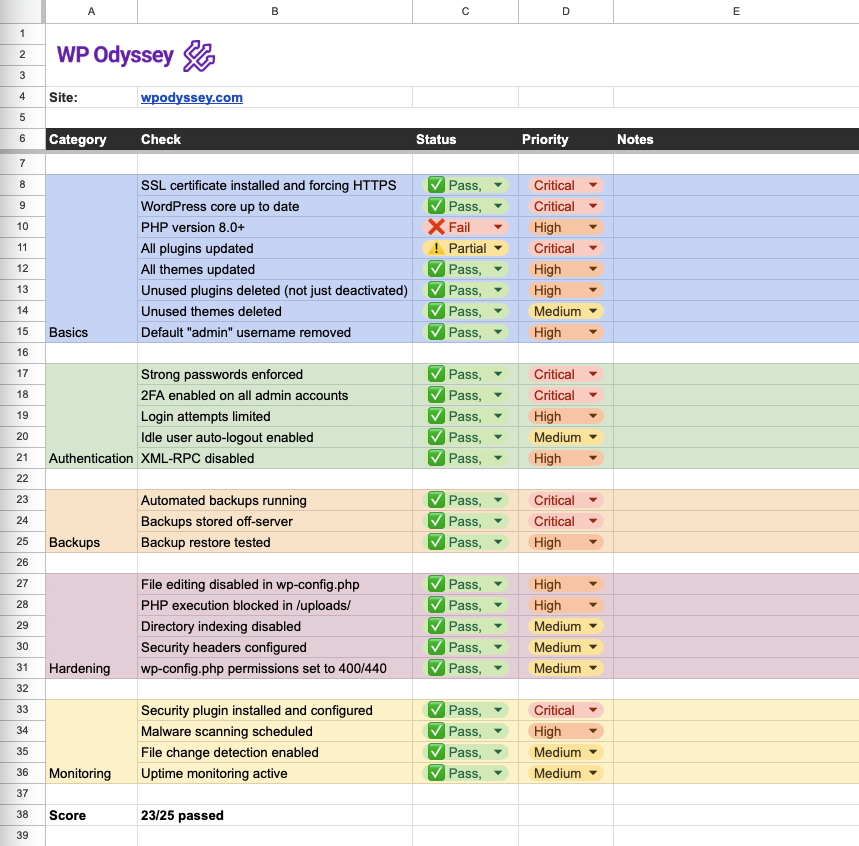
Once you have a checklist, a full security audit takes about 20-30 minutes per site depending on what issues you may find. From experience, expect a few surprises.
Want the checklist? I’ve made the Google Sheet template available for free inside the WP Odyssey community. Join for free and grab it → free.wpodyssey.com
What to Do if You’ve Been Hacked
First, don’t panic. I’ve cleaned up dozens of hacked sites over the years, and in most cases, the damage is recoverable.
Follow the steps in this WordPress security guide as your recovery plan:
- Don’t delete anything yet – you might destroy evidence you need
- Take your site offline – put up a maintenance page
- Scan for malware – use your security plugin and an external scanner
- Check your backups – find the most recent clean backup
- Restore from a clean backup if available
- If no clean backup exists, manually clean the infection:
- Replace WordPress core files with a fresh download
- Check all plugin and theme files against their originals
- Search the database for injected content (spam links, redirects)
- Check for rogue user accounts
- Change all passwords – WordPress admin, database, FTP, hosting control panel
- Update everything – WordPress, plugins, themes, PHP
- Harden your site using the steps in this guide
- Request a review from Google if your site was flagged
- Monitor closely for the next few weeks
I’ve had several instances that I’ve had to clean and the process isn’t nearly as bad as you would expect if you were prepared before it happened. Without backups and without Google Search Console it gets a bit more tricky but restoring a site, locking it down can be as quick as a few hours or as painful as a few days depending how prepared you were for it. If your site has been flagged by Google then make sure any issues are cleaned up before you request any review otherwise it will just delay the process even more. Get it cleaned up, submit the review and you will be surprised how quick they can remove the issue.
WordPress Security FAQ
Is WordPress secure?
Yes, WordPress core is well-maintained and regularly patched by a dedicated security team. Most WordPress hacks happen because of outdated plugins, weak passwords, or poor hosting, not because of flaws in WordPress itself.
How often should I update WordPress?
Check for updates at least weekly. Enable auto-updates for minor core releases and security patches. Major updates should be applied within a week of release after verifying compatibility.
What is the best WordPress security plugin?
I use Defender Pro by WPMU DEV and recommend it based on years of real-world use across 100+ sites. Wordfence and Sucuri are also solid options. The best plugin is the one you actually configure and maintain.
Do I need a WAF for WordPress?
A WAF adds a significant layer of protection, especially against automated attacks. Cloudflare’s free tier is a good starting point. If your site handles sensitive data or gets significant traffic, invest in a proper WAF.
How do I know if my WordPress site has been hacked?
Common signs include: unexpected redirects, new admin users you didn’t create, modified files, spam content injected into your pages, Google warnings in search results, and unusual server resource usage. Regular malware scanning catches most of these early.
Is free hosting safe for WordPress?
I’d strongly advise against it. Free hosting typically means shared resources with no isolation, no SSL, no support, and often injected advertising. You’re trusting your site to a provider with no revenue incentive to keep your data safe.
How do I secure my WordPress login page?
Combine multiple layers: strong unique passwords, two-factor authentication, login attempt limiting, and optionally HTTP authentication on /wp-admin/. Consider renaming or hiding your login URL, though this is security through obscurity rather than true protection.
What file permissions should WordPress files have?
Files should be set to 644, directories to 755, and wp-config.php to 600 or 640. Never set anything to 777.
How often should I run a security audit?
Monthly for critical sites, quarterly at minimum for everything else. At Gecko, we run monthly scans across all 100+ client sites. It takes time, but it’s caught issues early more times than I can count.
Can nulled or pirated WordPress themes contain malware?
Almost always, yes. Nulled themes and plugins are one of the most common malware vectors in the WordPress ecosystem. The money you “save” isn’t worth the risk of a full site compromise. Always use trusted sources.
Should I hide my WordPress version number?
It’s a minor step that doesn’t hurt, but don’t rely on it. Attackers have other ways to fingerprint your setup. Focus your energy on keeping everything updated instead.
How does shared hosting affect WordPress security?
On shared hosting, a compromised neighbouring site can potentially affect yours if the server isn’t properly isolated. Choose hosts that use account isolation technology, and keep your own security tight regardless.
This WordPress security guide is based on 15+ years of hands-on WordPress experience and managing security across 100+ client sites at Gecko. For more WordPress tutorials, tips, and community support, check out WP Odyssey.
Want the security audit checklist?
I’ve turned this guide into a free Google Sheet template you can use to audit your own sites. Grab it inside the WP Odyssey community – it’s free to join.